















Android – APN – How to set APN settings
Android Version 10
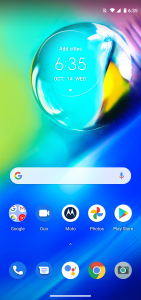
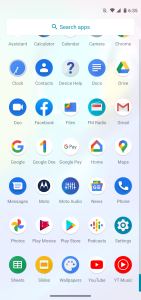
- From the “Homescreen”, swipe up to open the app drawer and tap on “Settings”.

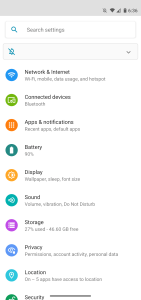
- From the “Settings” screen, tap on “Network & Internet”.
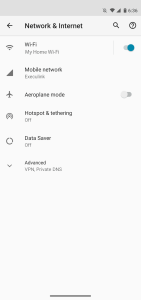
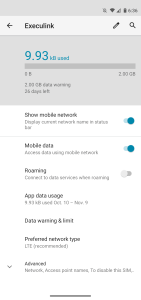
- From the “Network & Internet” screen, tap on “Mobile network”.
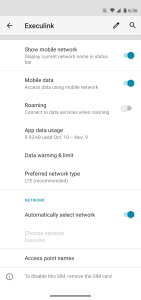
- Next you will need to tap on “Advanced” to expand the screen for more settings.
- Tap on “Access Point Names”.
- Now tap on the + in the top right of the screen.
- Fill in the Android APN Settings.
- Name: Execulink
- APN: internet.execulink
- Proxy: <Not set>
- Port:<Not set>
- Username: <Not set>
- Password: <Not set>
- Server: <Not set>
- MMSC: <Not Set>
- MMS proxy:<Not set>
- MMS port: <Not set>
- MCC: 302 <Read-only>
- MNC: 340 <Read-only>
- Authentication type <None>
- APN type: default
- APN protocol: IPv4
- APN roaming protocol: IPv4
- APN enable/disable: <cannot be changed currently>
- Bearer (When Android presents a text box): Unspecified
- MVNO type: <None>
- MNVO value: <Not set>
Note: the settings that are grey generally do not need to be altered.
- Now tap the
 and then tap “Save” and you will be brought back to the list of APNs with Execulink listed.
 - Now tap on the + in the top right of the screen again to add the MMS APN.
- Fill in the Android APN Settings.
- Name: MMS
- APN: mms.execulink
- Proxy: <Not set>
- Port:<Not set>
- Username: <Not set>
- Password: <Not set>
- Server: <Not set>
- MMSC: http://mms.execulink.com
- MMS proxy:<Not set>
- MMS port: <Not set>
- MCC: 302 <Read-only>
- MNC: 340 <Read-only>
- Authentication type <None>
- APN type: mms
- APN protocol: IPv4
- APN roaming protocol: IPv4
- APN enable/disable: <cannot be changed currently>
- Bearer (When Android presents a text box): Unspecified
- MVNO type: <None>
- MNVO value: <Not set>
Note: the settings that are grey generally do not need to be altered.
- Now tap the and then tap “Save” and you will be brought back to the list of APNs with Execulink listed.
- To activate the APN setting, you will need to tap on the circle next to Execulink and it will fill in solid.
- Now you can leave the settings by pressing the home button. If your data is not working, you may need to reboot the phone.

 and then tap “Save” and you will be brought back to the list of APNs with Execulink listed.