














How to Add/Remove Email Addresses in MyExeculink
To add or remove an email address in MyExeculink, follow the steps below:
-
-
- Log in to MyExeculink
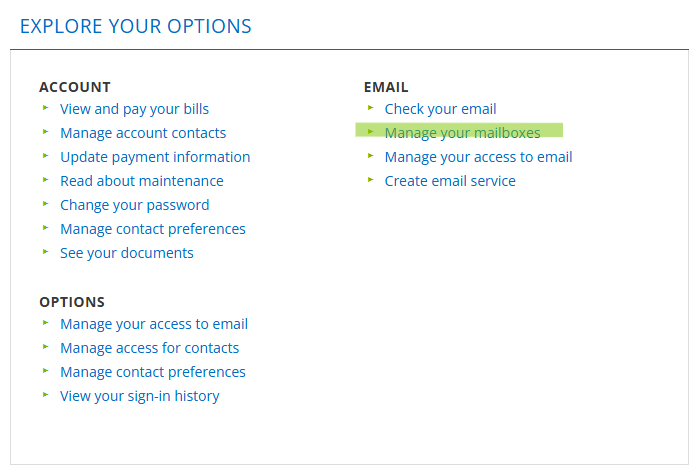
- On the front page, click on the “Manage your mailboxes” link

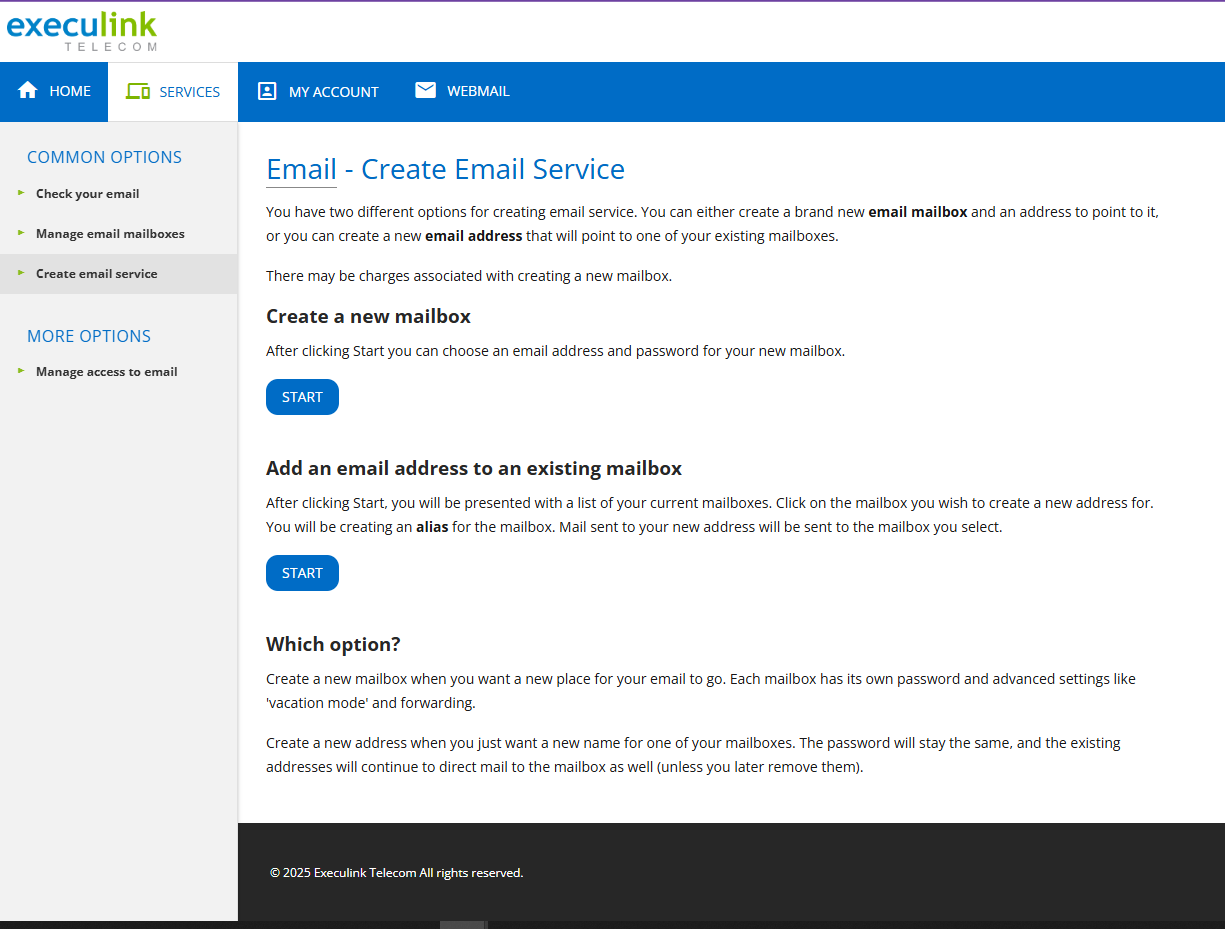
- You have two different options for creating email service. You can either create a brand new email mailbox and an address to point to it, or you can create a new email address that will point to one of your existing mailboxes.

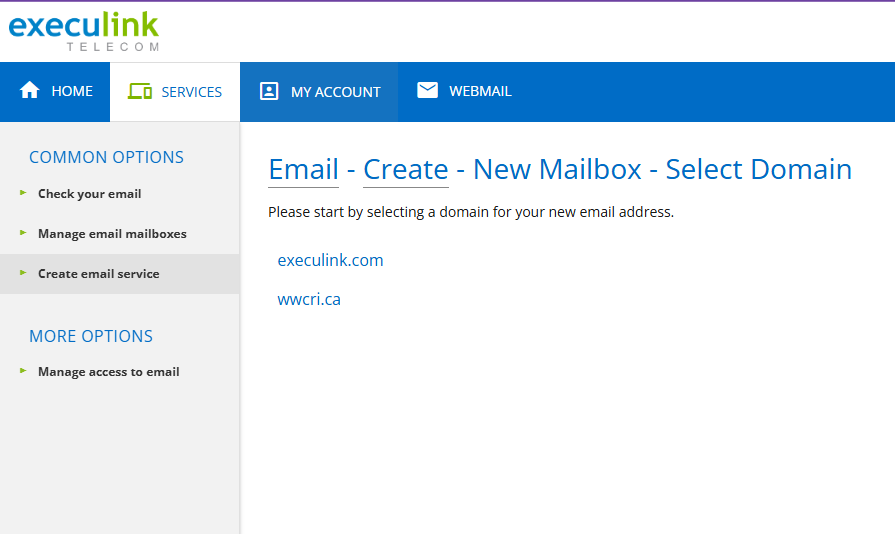
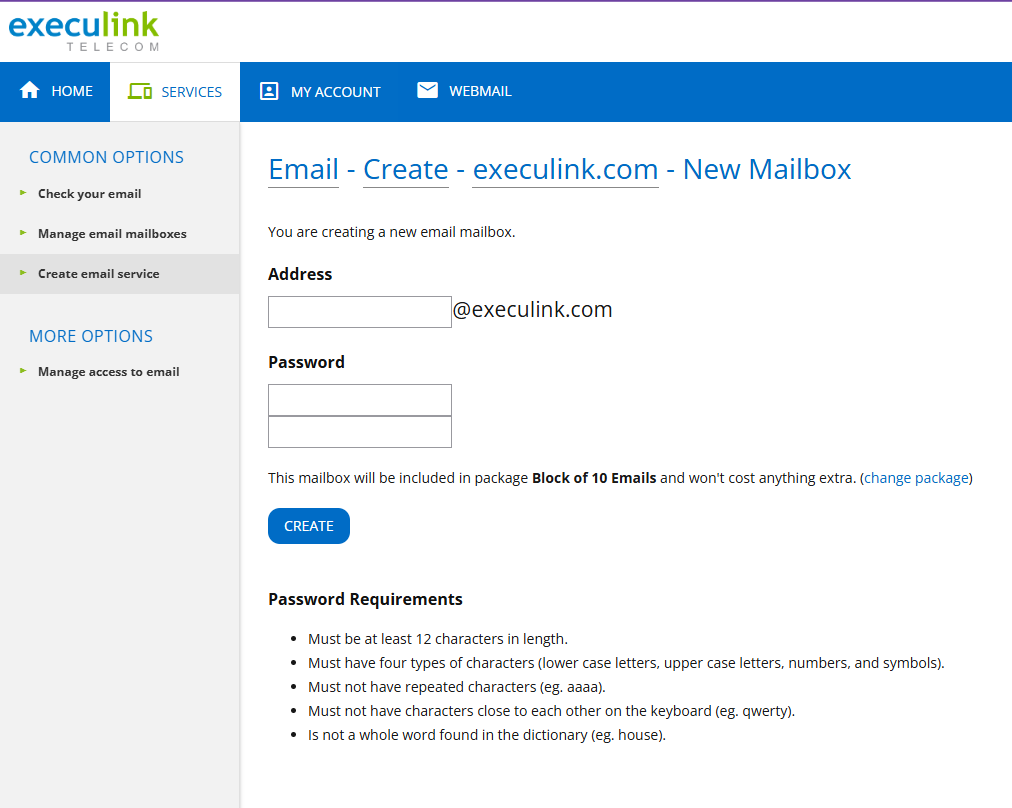
- To create a new mailbox, click the first Start button. You can choose an email address and password for your new mailbox.

- To add an email address to an existing mailbox, click the second Start button. You will be presented with a list of your current mailboxes. Click on the mailbox you wish to create a new address for. You will be creating an alias for the mailbox. Mail sent to your new address will be sent to the mailbox you select.

-