













How Do I Update My Auto Pay Information?
To set up Auto Pay:
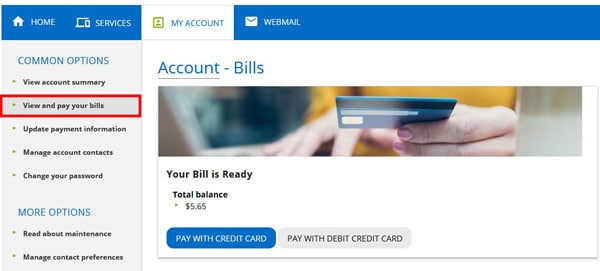
- Once you’re signed in to MyExeculink, click on “Bills and Payment” option under the My Account heading in the blue navigation. You’ll be directed to a page where you can see all your bills.
- Click on the “Update Payment Information” link on the left-hand “Common Options” menu (fly-out menu on mobile).
- On the next page, select which method of payment you would like to use to pay your bills on an ongoing basis – Visa, Debit, or a bank account.
- Once you click on your selection, you will see a popup telling you that you will be redirected to Execulink’s secure payment processing site. Click “Continue”.
- On the next page, enter your details of your account or card, and select save. Your Auto Pay will then be set up.