















MaX UC Desktop – One-Time Manual Update
To ensure your MaX UC (Accession) desktop application continues to receive the latest updates, a one-time manual install is required. After you complete this manual update, future updates will install automatically as usual. This page provides two ways to complete the update.
Option 1 (Recommended): Update from the MaX UC App
- Open the MaX UC app.
- Click your Profile picture.
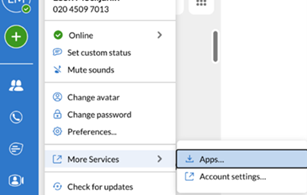
- Select More Services → Apps.

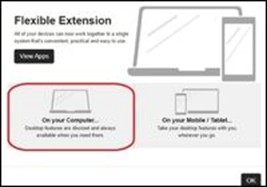
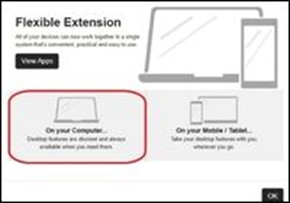
- Select On your Computer.
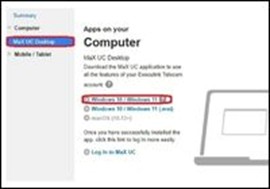
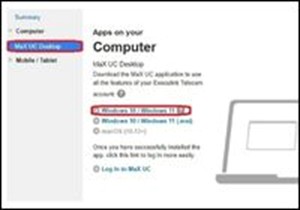
- Select MaX UC, then choose Windows 10 / Windows 11 (EXE installer).


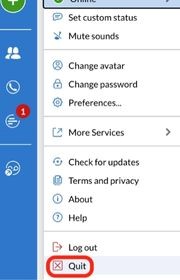
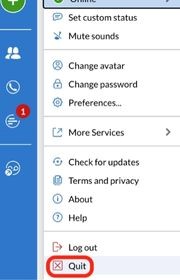
- Close MaX UC completely, click your Profile picture again, and choose Quit to fully close the app. (MaX UC must be fully closed before running the installer.)

- Run the downloaded installer.
Option 2: Update via MyExeculink Portal
- Open your web browser and go to your MyExeculink login page.
- Sign in with your MyExeculink credentials.
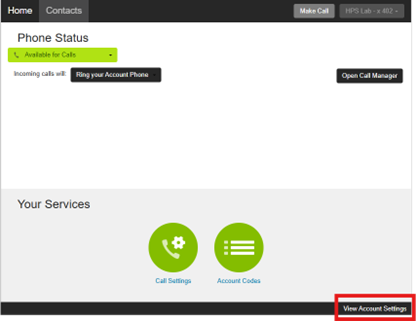
- At the bottom of the page, click Support → Downloads.

- If you do not see the Support > Downloads section above, click on View Account Settings.

- Select On your Computer.
- Select MaX UC, then choose Windows 10 / Windows 11 (EXE installer) to download the installer file.


- Close MaX UC completely, click your Profile picture again, and choose Quit to fully close the app.
- Run the downloaded installer.

Important Notes:
- This is a one-time manual update.
- After this, MaX UC will update automatically again.
- Make sure MaX UC is completely closed before running the installer
For IT Administrators
Some customers may require a direct installer instead of using the standard app update steps. In these cases, you can use the following links:
- MaX UC EXE installer: https://commpapps.metaswitch.com/maxuc.exe
- MaX UC MSI installer: https://commpapps.metaswitch.com/maxuc.msi
As with the standard methods, ensure the MaX UC client is fully closed before running or deploying the installer.
Frequently Asked Questions (FAQ)
- Why do I have to do this update manually?
- A one-time manual install is required so that your MaX UC desktop app can continue receiving future updates. After completing this step, updates will resume automatically.
- What happens if I don’t do the update?
- If you don’t complete this one-time manual update:
- MaX UC won’t be able to install new updates automatically
- Over time, your app may become out of date and may not work as expected
- You may eventually need to perform the manual install before you can use MaX UC normally again
- We strongly recommend completing this update as soon as possible.
- Do I need to close MaX UC before installing?
- Yes. MaX UC must be completely closed before you run the installer.
- Use Profile picture → Quit to close the app fully.
- Where do I download the update?
- You can download the update either:
- through the MaX UC app (recommended), or
- through MyExeculink → Support → Downloads
- Is this update required more than once?
- No. This is a one-time manual update. After this step, updates will install automatically again.
- I’m an IT administrator. Where do I find the EXE or MSI installers?
- EXE and MSI installers are available through the direct vendor download links for customers who require them.