














How to Turn Your Smartphone into a Wi-Fi Hotspot
July 19, 2019 Category: Pop Culture
Click here to learn more about Execulink’s Mobility services
Are you headed to a cottage or trailer this summer that doesn’t have Internet access? Sometimes you need to stay connected when away from your home Wi-Fi network. The best way to do that is to turn your smartphone into a hotspot. As long as you are in an area that still has cell tower service, it is easy to stay online from all of your portable devices! Follow this step-by-step photo guide that takes you through the process.
What is a Smartphone Wi-Fi hotspot?
When creating a hotspot with your smartphone you are turning it into the equivalent of a broadband modem and router. It allows you to distribute a web connection to nearby devices via Wi-Fi. You can share it with your tablet, laptop or friends as long as they know the password.
How to set up your Wi-Fi hotspot
We have accumulated two different examples of how to set up your Wi-Fi hotspot, using an iPhone and one of our Android smartphones, the Nokia 5!
The process for both is essentially the same and straightforward. The password is what protects the security of your hotspot connection, so any nearby strangers will not have access to your personal data. Only those who you share the password with can have access.
It is important to note that mobile phone data is more expensive than using a regular home or public Wi-Fi network. When using your hotspot, be cautious of your cellphone plan’s data limits. Hotspots also drain your phone’s battery more rapidly, so be sure to have a regular or portable charger nearby to prevent your phone from dying.
iPhone
You can use Wi-Fi, Bluetooth or USB to connect to your Personal Hotspot on your iPhone. For the purposes of this article we decided to focus on the Wi-Fi alternative.
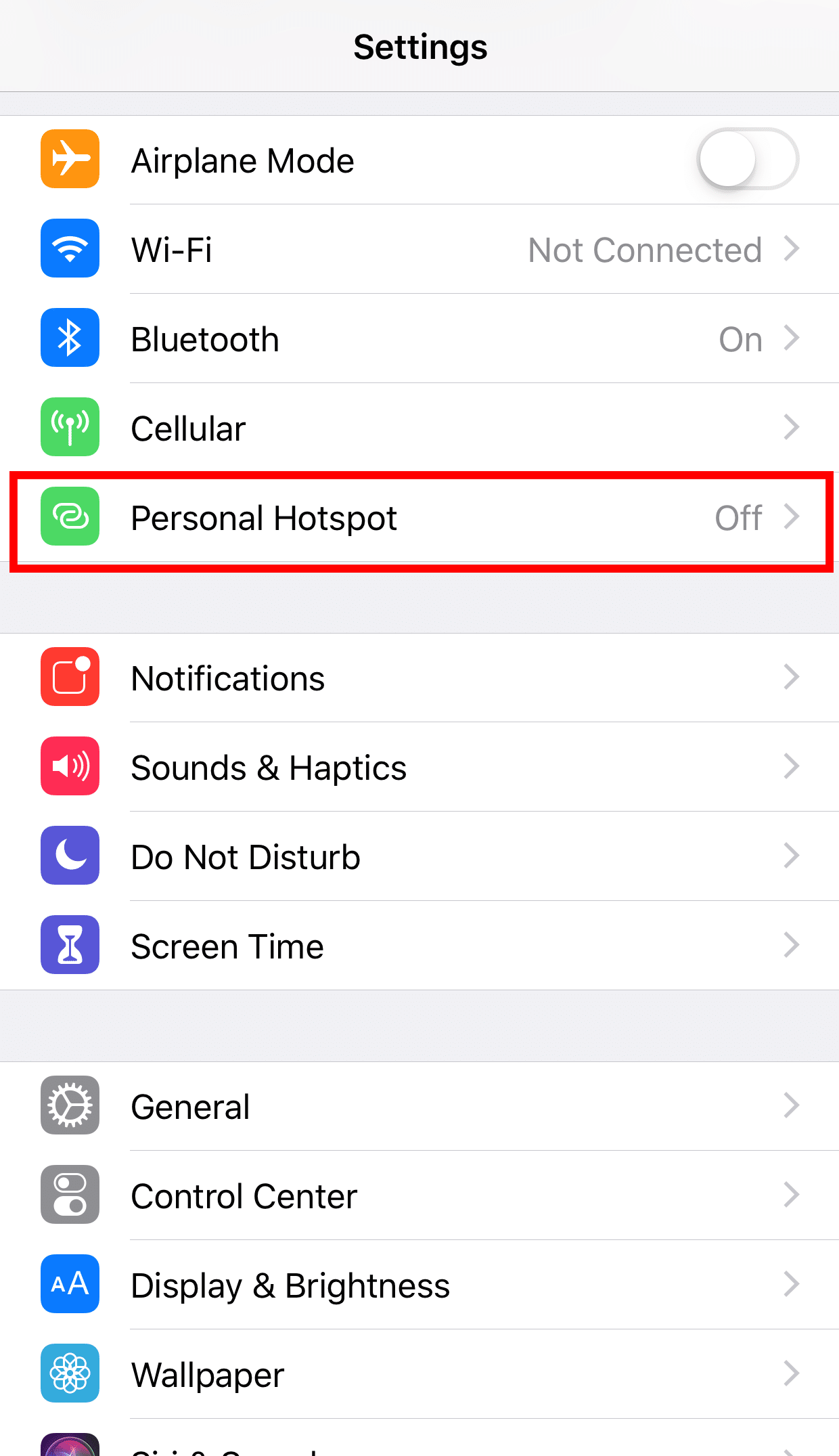
1. On your iPhone, go to the Settings app.
2. Select “Personal Hotspot”
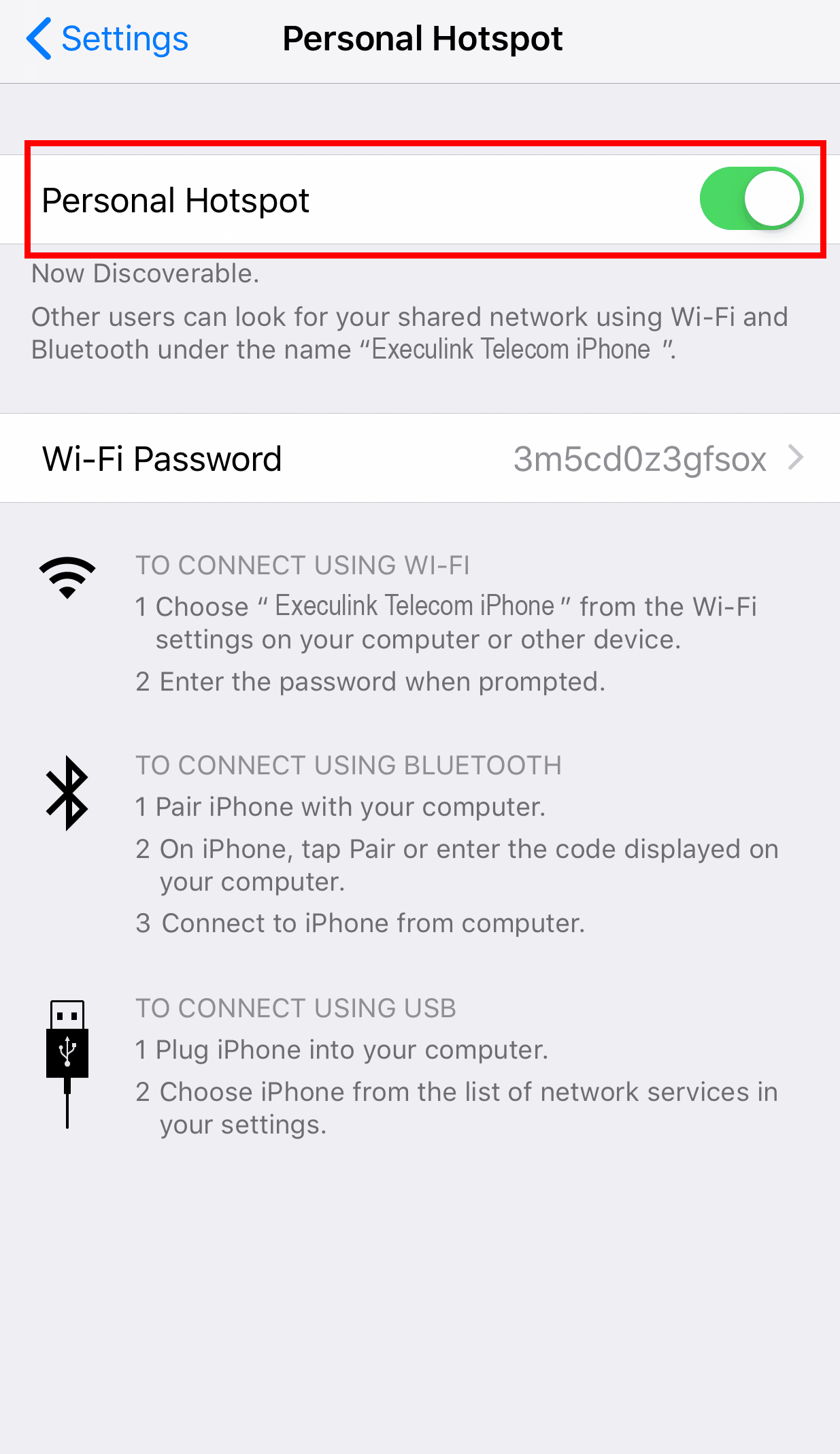
3. Make sure it is toggled ON.
4. Stay on this screen until you have your second device connected.
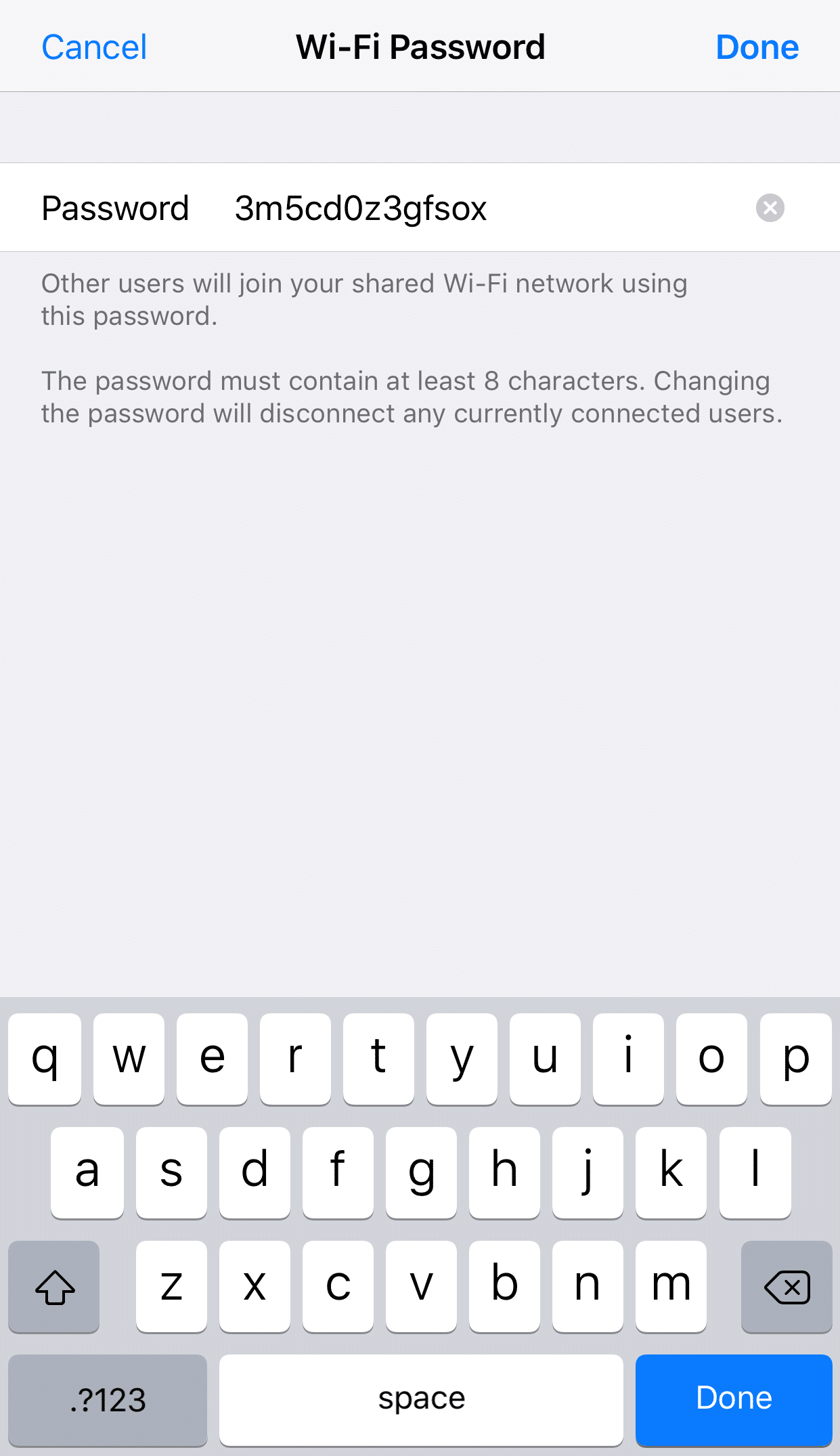
5. Verify the password and name of the device. You can customize the password to be something easier to remember than the one that is automatically provided.
6. On the second device, that you want Internet on, look for the name of your iPhone as a possible network connection. In this example, you can see that the name of the iPhone is “Execulink Telecom’s iPhone”.
7. Tap this Wi-Fi network name to join and enter the password for your personal hotspot.
8. To disconnect devices, turn off the Personal hotspot by toggling it OFF.
When you have devices connected to your hotspot the status bar at the top of your screen will turn blue.
Android
To configure the Wi-Fi hotspot connection using our Nokia 5 android phone:
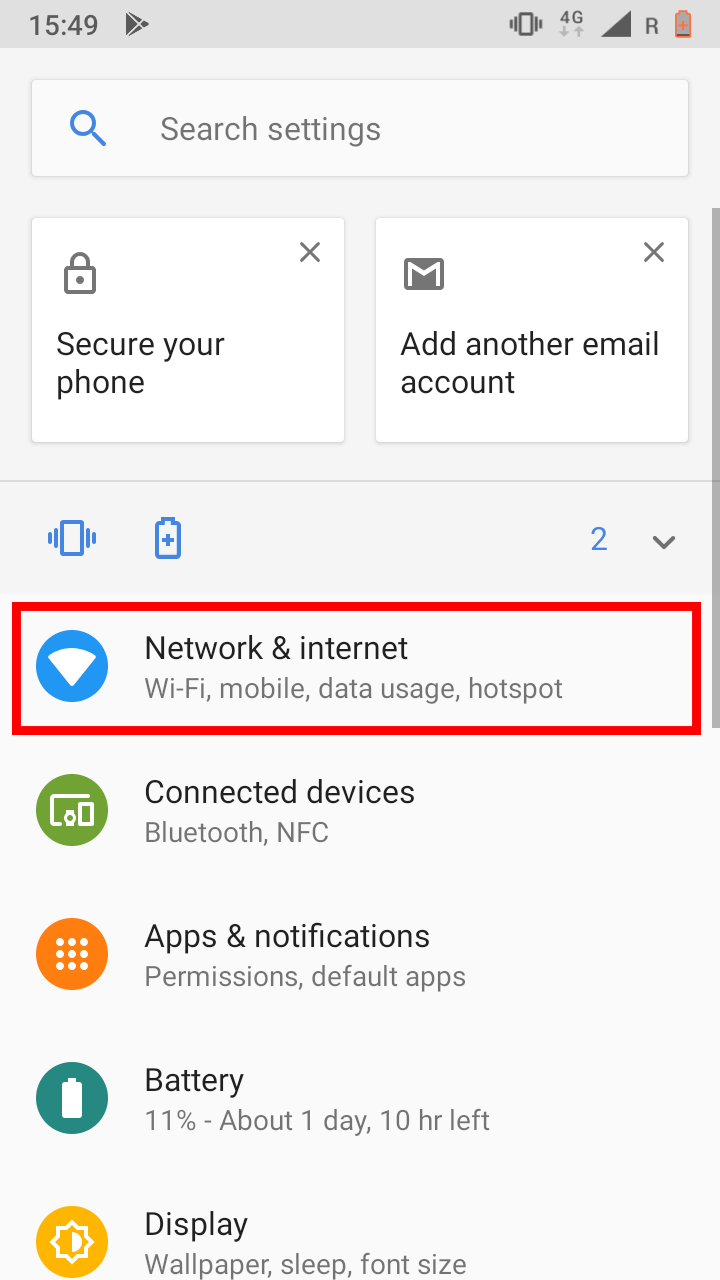
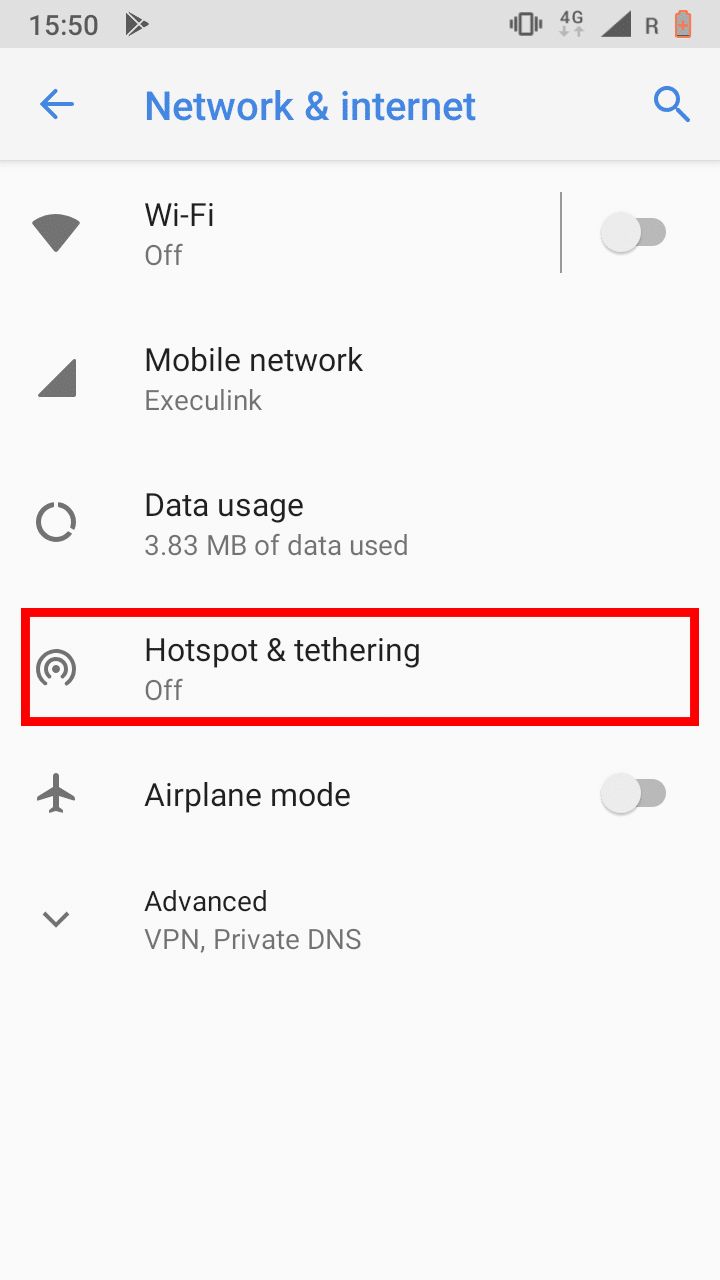
1. Open the Settings.
2. Select Network & Internet.
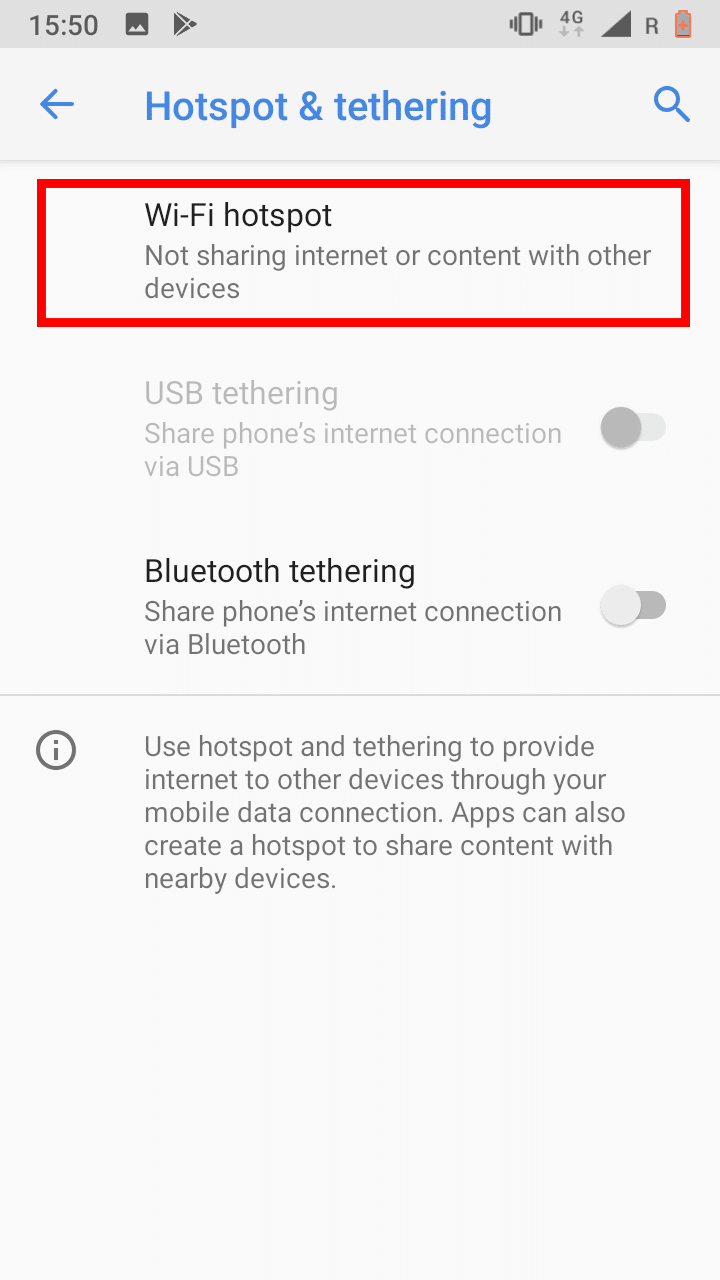
3. Select Hotspot & tethering.
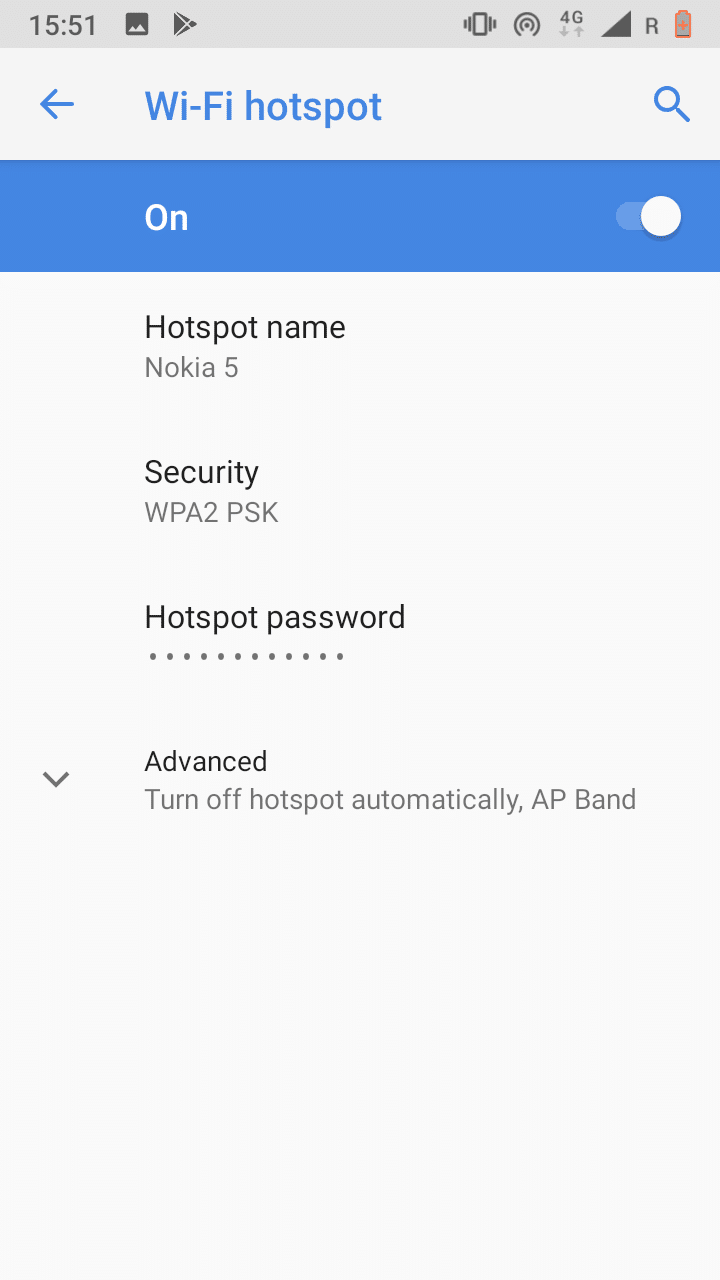
4. Select Wi-Fi hotspot.
5. Toggle the network to “ON”. Keep this screen open until the second device you want to connect has joined the network. You can customize the name of the network and your password to whatever you like!
6. On the second device that you want Internet on, look for the name of your network.
7. Tap this Wi-Fi network name to join and enter the password for your personal hotspot.
8. To disconnect devices, turn off the Personal hotspot by toggling it OFF.
You can also create a network with your android device using Bluetooth tethering!
Using a hotspot is an awesome way to stay connected when travelling over the summer. It can be extremely useful when trying to get some work done remotely using a laptop or tablet. Check out our mobility page to learn more about the cell phone plans we offer.
Click here to learn more about Execulink’s Mobility services