












Exploring MyExeculink: 6 Tips and Tricks!
April 14, 2022 Category: Technical Support
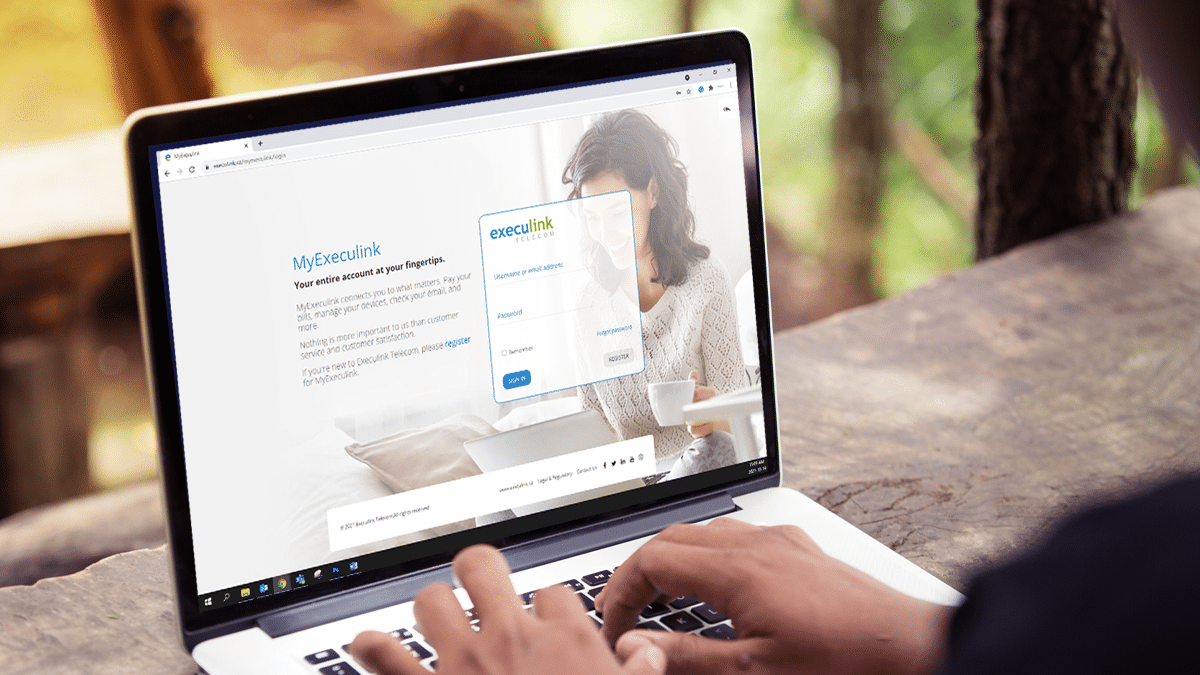
MyExeculink is our customer portal that can help you manage your services with us! We want to make updating your account easy so that you can save time. This blog will point you in the right direction within our support centre to find tips on how to use your MyExeculink account.
https://www.youtube.com/watch?app=desktop&v=mflrSOz2sp4&feature=emb_title
Here is a summary of all the things you can do through MyExeculink:
- Manage the services you have
- View and pay your bill
- Change your password
- Check your Execulink email
- Manage access and create email addresses
- Monitor your phone calls and usage
- Manage your Internet usage
- View your sign in history
- Update your Hosted Phone services
- And more!
1. How to Register for MyExeculink
If you have recently signed up for Execulink’s services, we encourage you to register for a MyExeculink account! You will love having access to this portal. You will need your account number to register; you can find this in the Welcome email we sent you upon sign up.
Learn how to register for MyExeculink
2. How to Update Your Wi-Fi Password
Managing your Wi-Fi password is easy through MyExeculink. If you have our Premium Router, you can do this by configuring it’s settings.
Follow this video for a step by step process!
https://www.youtube.com/watch?v=SVOtuWKBVPE
Learn how to configure your Premium Router
3. How to View your Bill
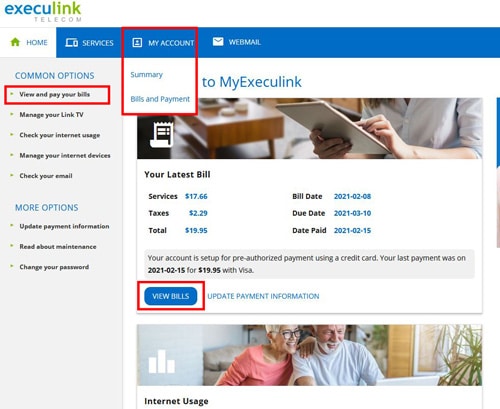
There are a few ways you can view your bill on MyExeculink.
- On the home page, you may see a “Your Latest Bill” card. Click on the “View Bills” button on that card.
- You can also click “View and pay your bills” on the left-hand menu.
4. How to update PAP information
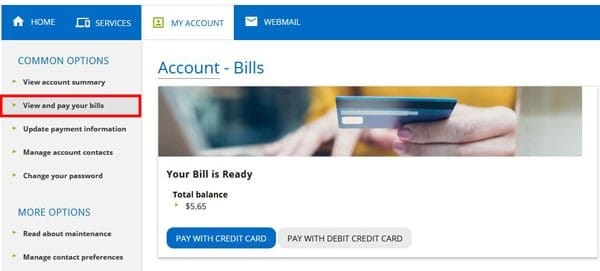
There are a few different ways to pay your bill, but the easiest way by far is to set up Pre-authorized Payment (or PAP) for your account and have each payment automatically withdrawn each month. To set up Pre-authorized Payment check out this support article.
5. How to Add/Remove Channels
If you have Link TV, you can add or change your TV channels and packages, remove devices and more through our convenient MyExeculink portal at any time. Check out the below tutorial video!
Learn how to update your Link TV service!
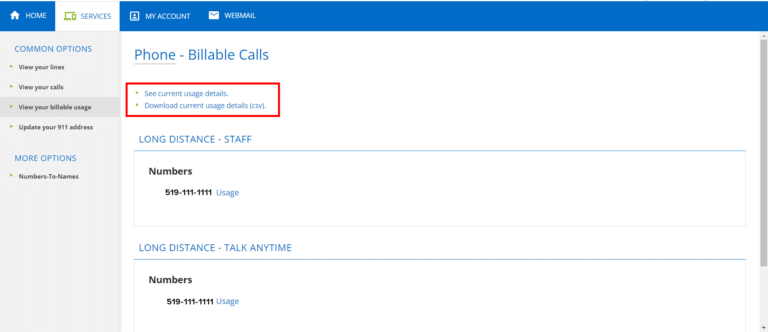
6. Viewing Long Distance Charges
You also have the ability to view your long distance charges through MyExeculink under the Phone tab. You can see current usage details and download them!
MyExeculink is a great tool that allows you to manage and update your account information with us! It is also very mobile friendly, so you can access all of this information while you are on the go! If you have not logged in yet we encourage you to get started today.
Log in to MyExeculink!