If you are an Execulink TV customer, chances are you have come across our Community Channel on Ch. 99. This station provides local weather forecasts, Video On Demand previews, national news updates as well as a section promoting local events.
Do you have an event coming up and need to get the word out there? You can now submit your event to be displayed on Execulink’s Community Channel at the comfort of your own computer with our Community Event Advertisement Online Form.
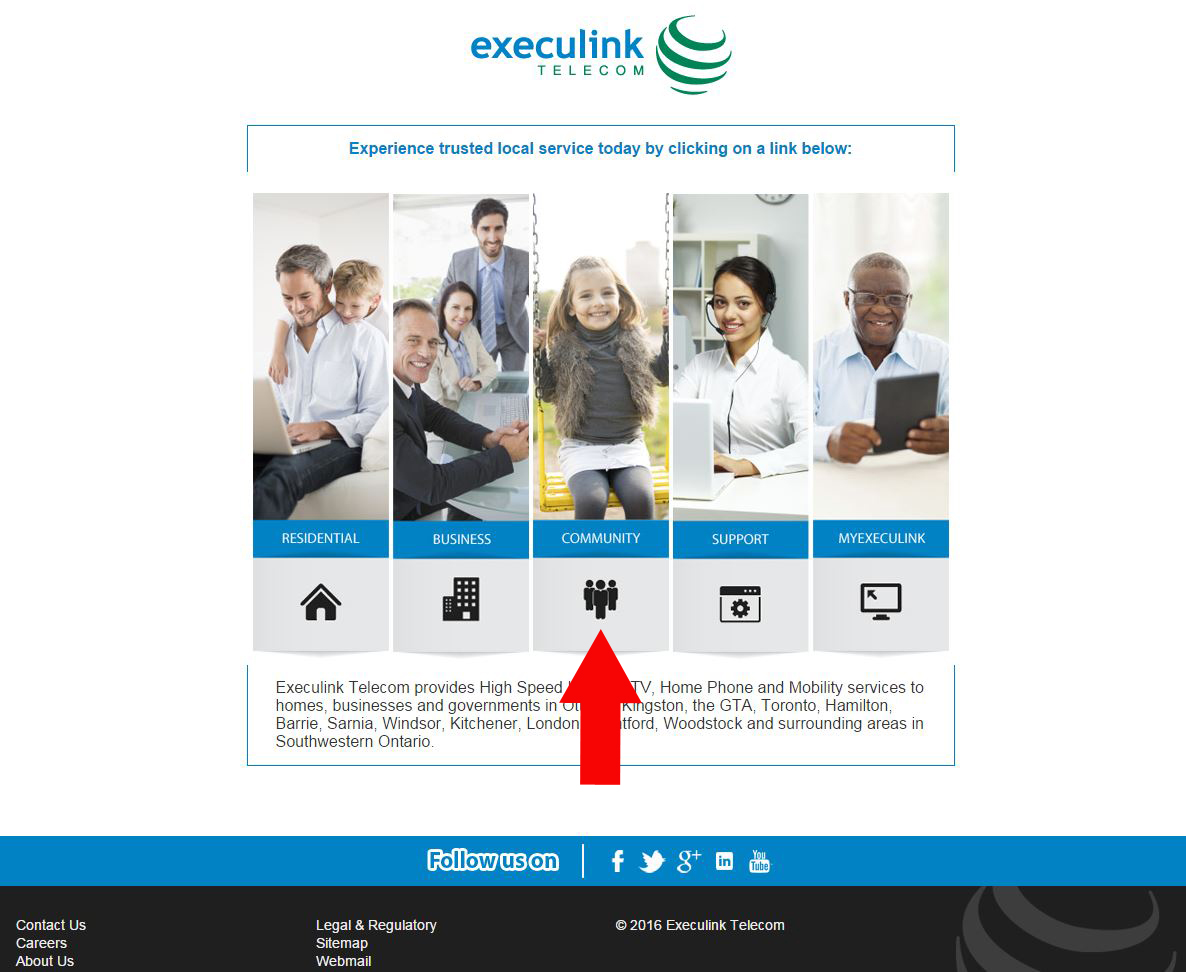
Below is a step by step guide to promoting your event on Execulink’s Community Channel.
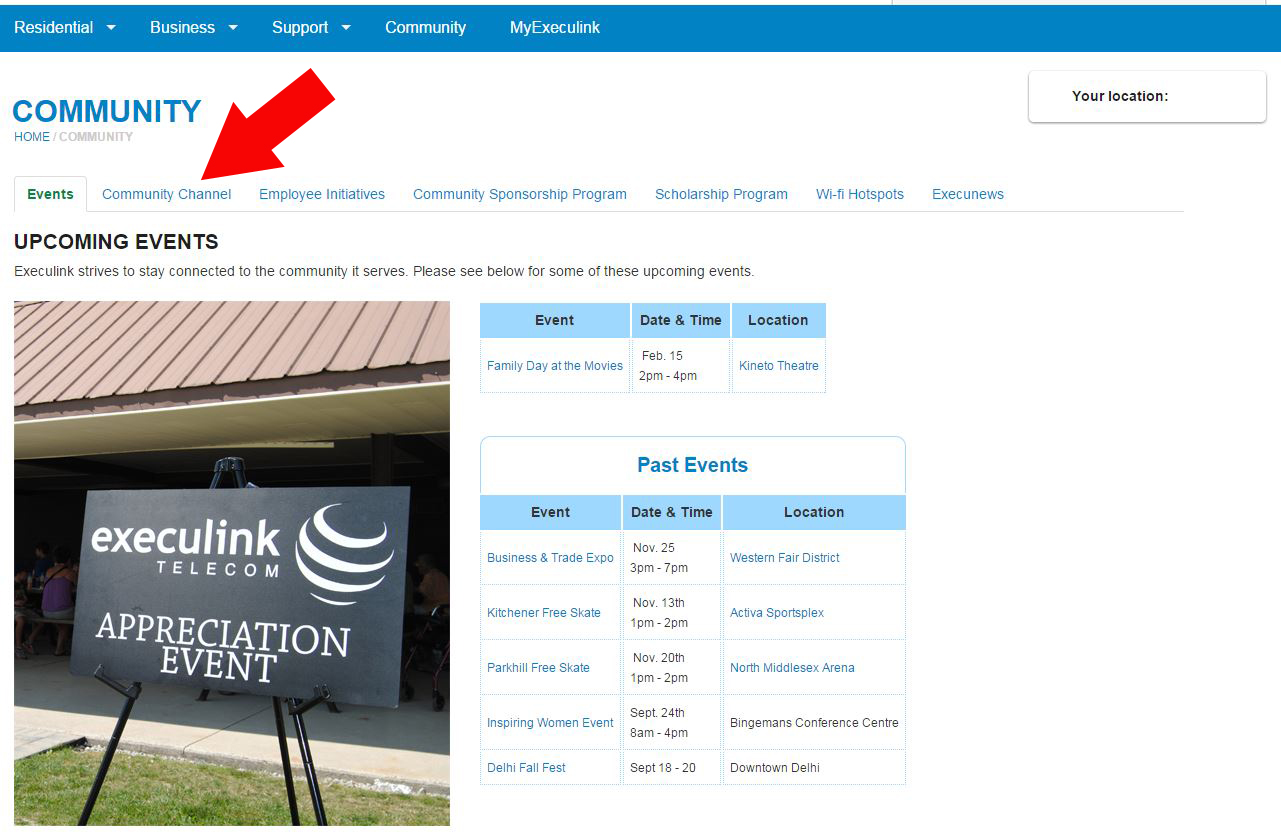
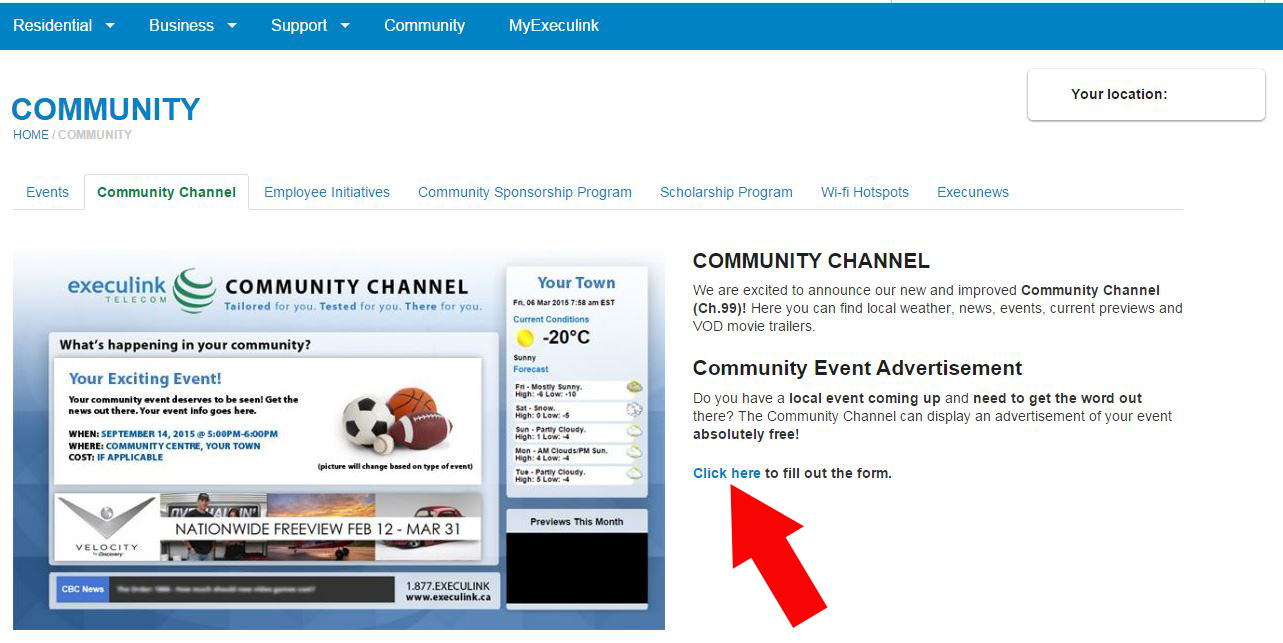
Step 2: Click on the tab titled ‘Community Channel’
Step 3: Click on ‘Click here to fill out the form’
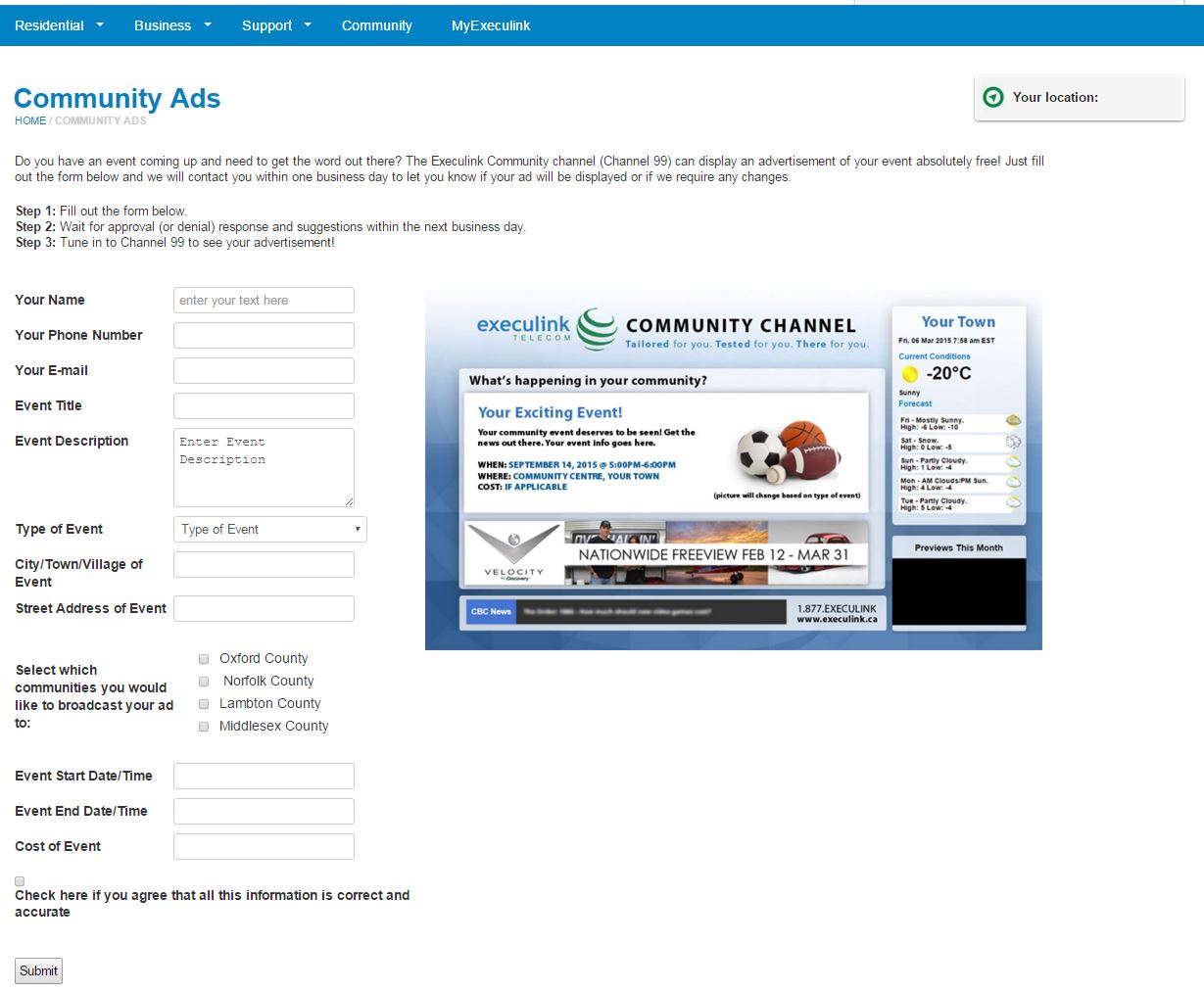
Step 4: Fill Out Form and click ‘Submit’
Note: Make sure to indicate which community you would like to broadcast this message to.
Step 5: Wait For Approval
After the form is filled out, it will be sent back to us at Execulink to approve. An approval (or denial) and suggestions will be sent within the next business day.
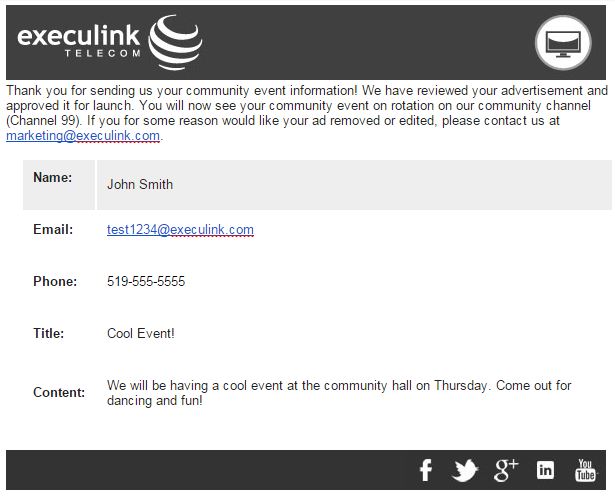
Step 6: When Ad is approved, you will be emailed confirmation
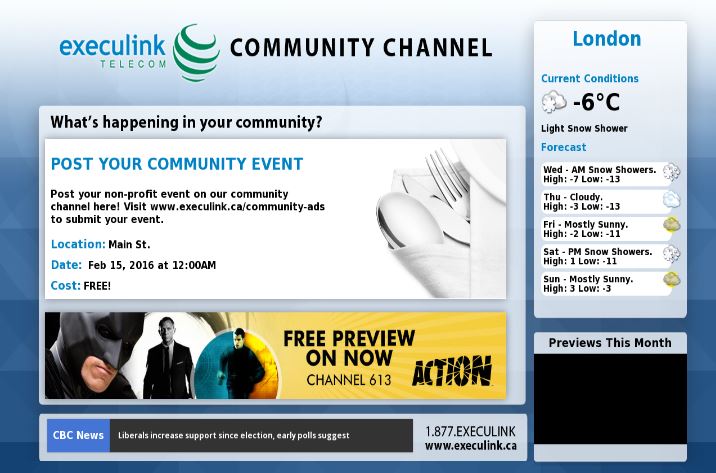
Step 7: See your ad on the community channel (Ch 99)
Staying in touch with the communities we serve is a priority here at Execulink and we are proud to offer this service to inform local customers about regional events that are important to them!
To watch the video on how to Add an Event to Execulink’s Community Event Page see below.
If you are interested in changing your MyExeculink password, we have provided step-by-step directions to make this adjustment.
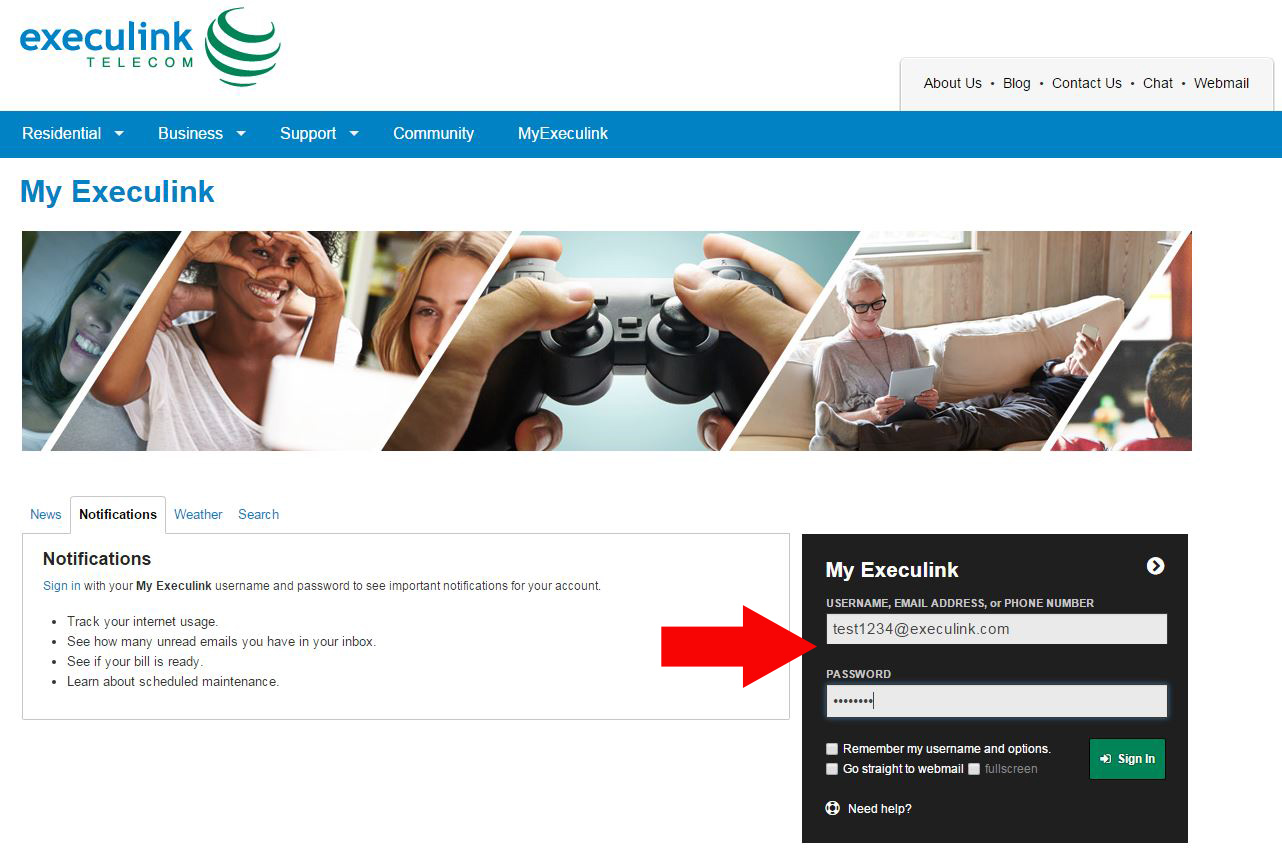
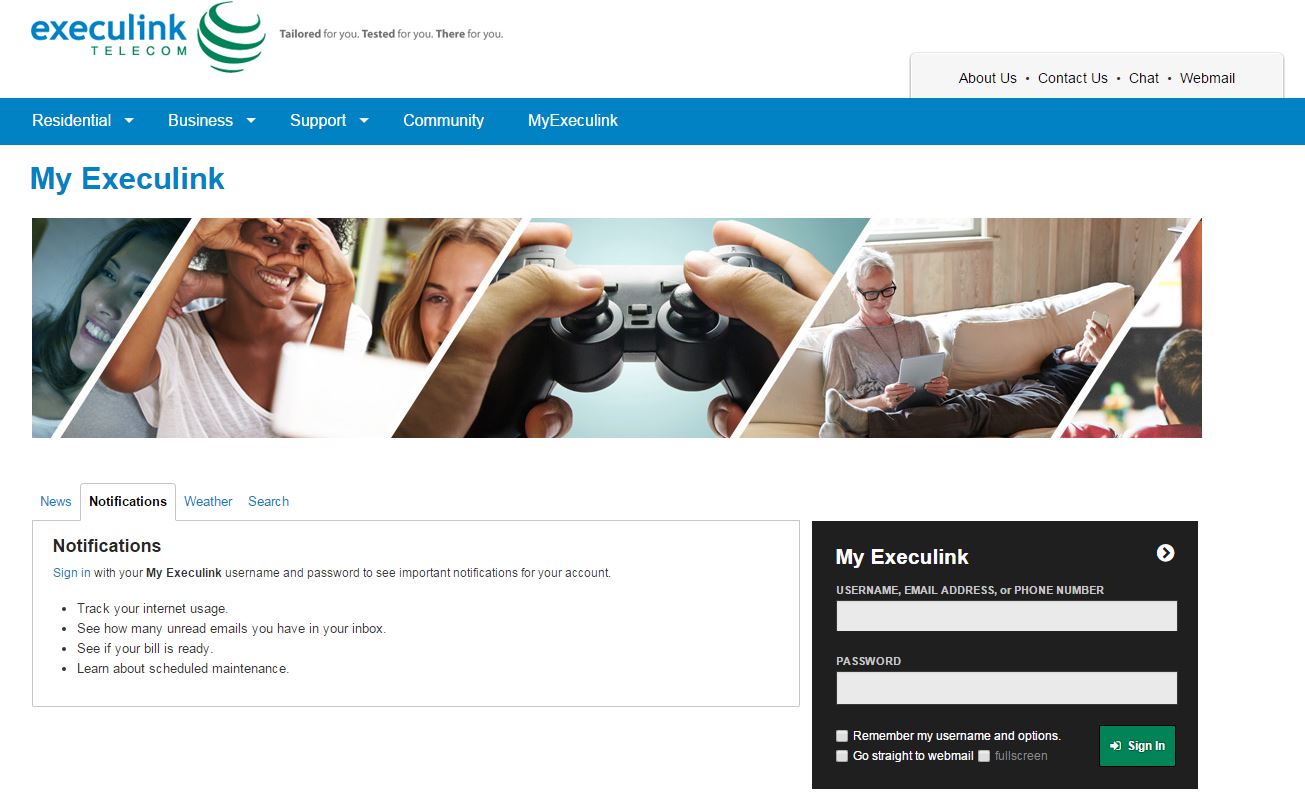
Step One – Log into MyExeculink Using Your Username and Current Password
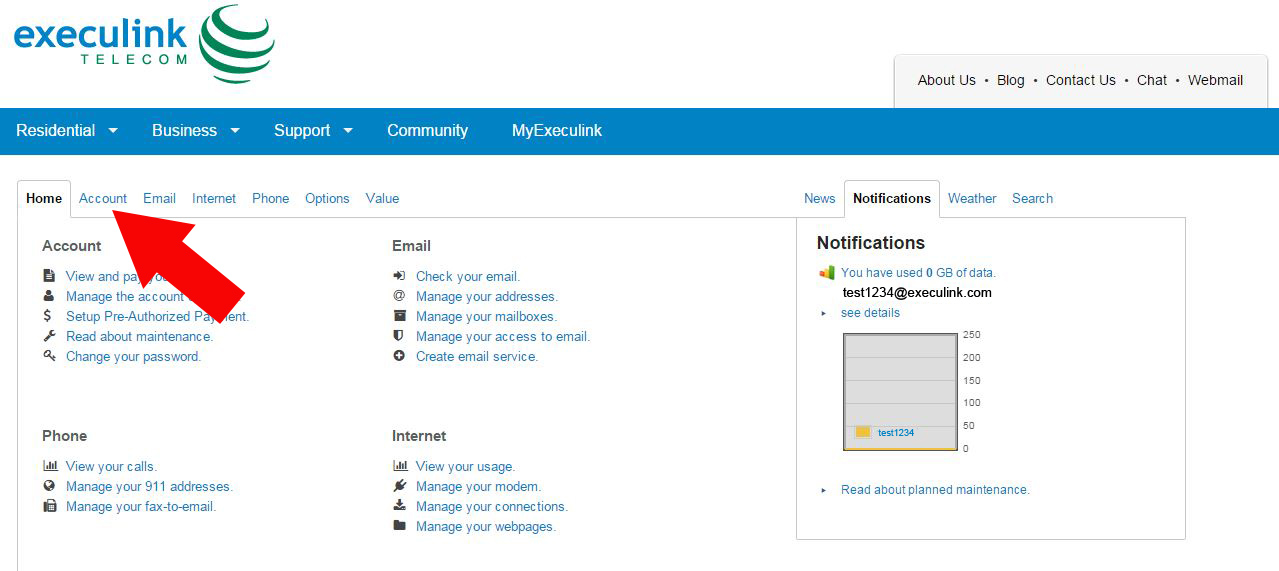
Step Two – Click ‘Account’
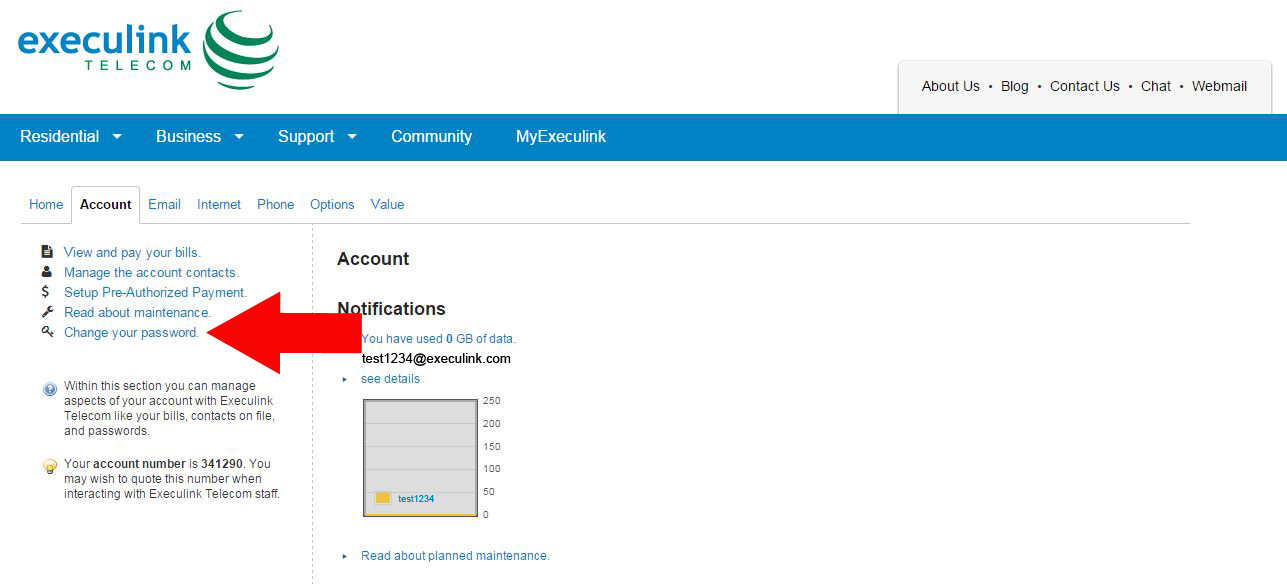
Step Three – Click ‘Change Your Password’
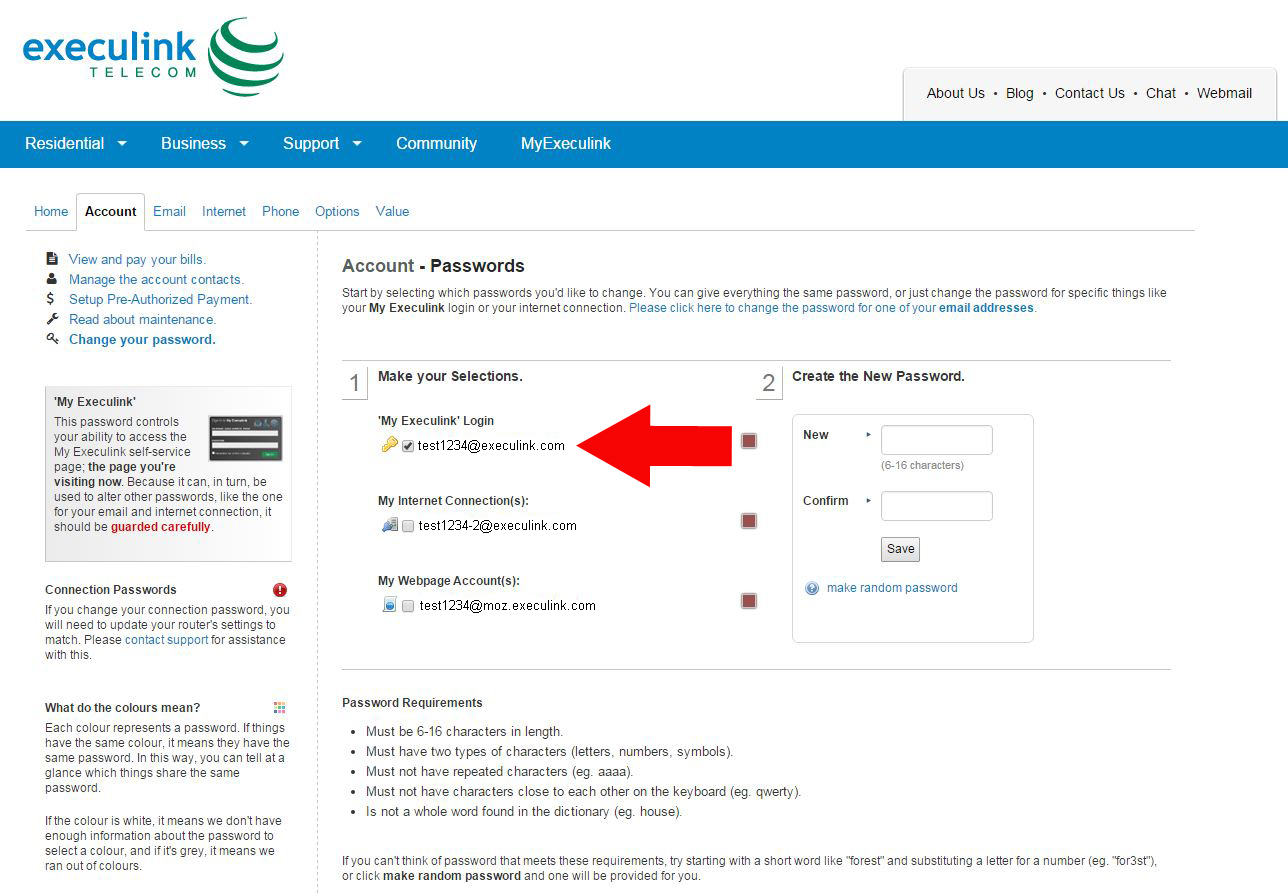
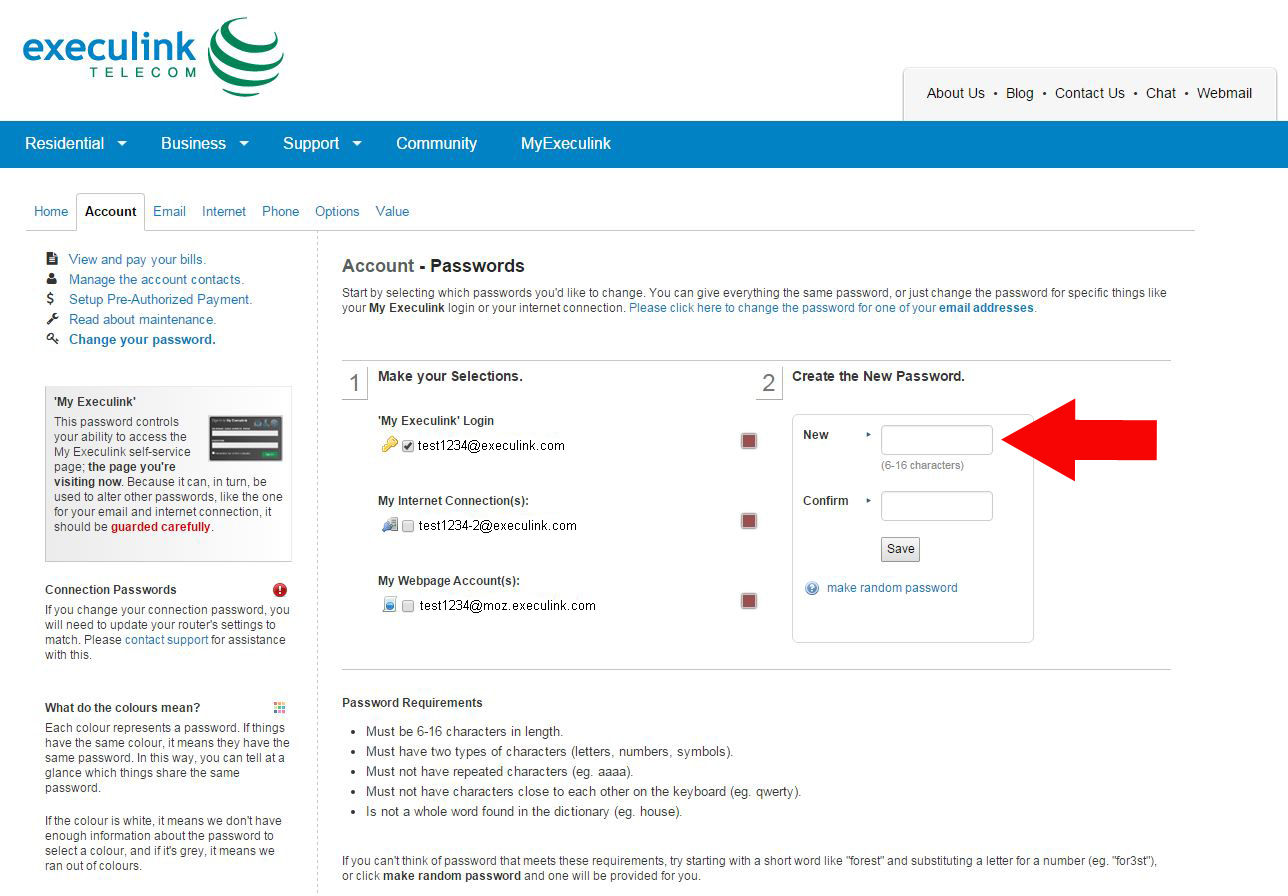
Step Four – Click the checkbox for your email address under ‘My Execulink’ Login
Step Five – Create Your New Password Under ‘Create the New Password’
There is also an option under the ‘Save’ button that will generate a random password for you to use.
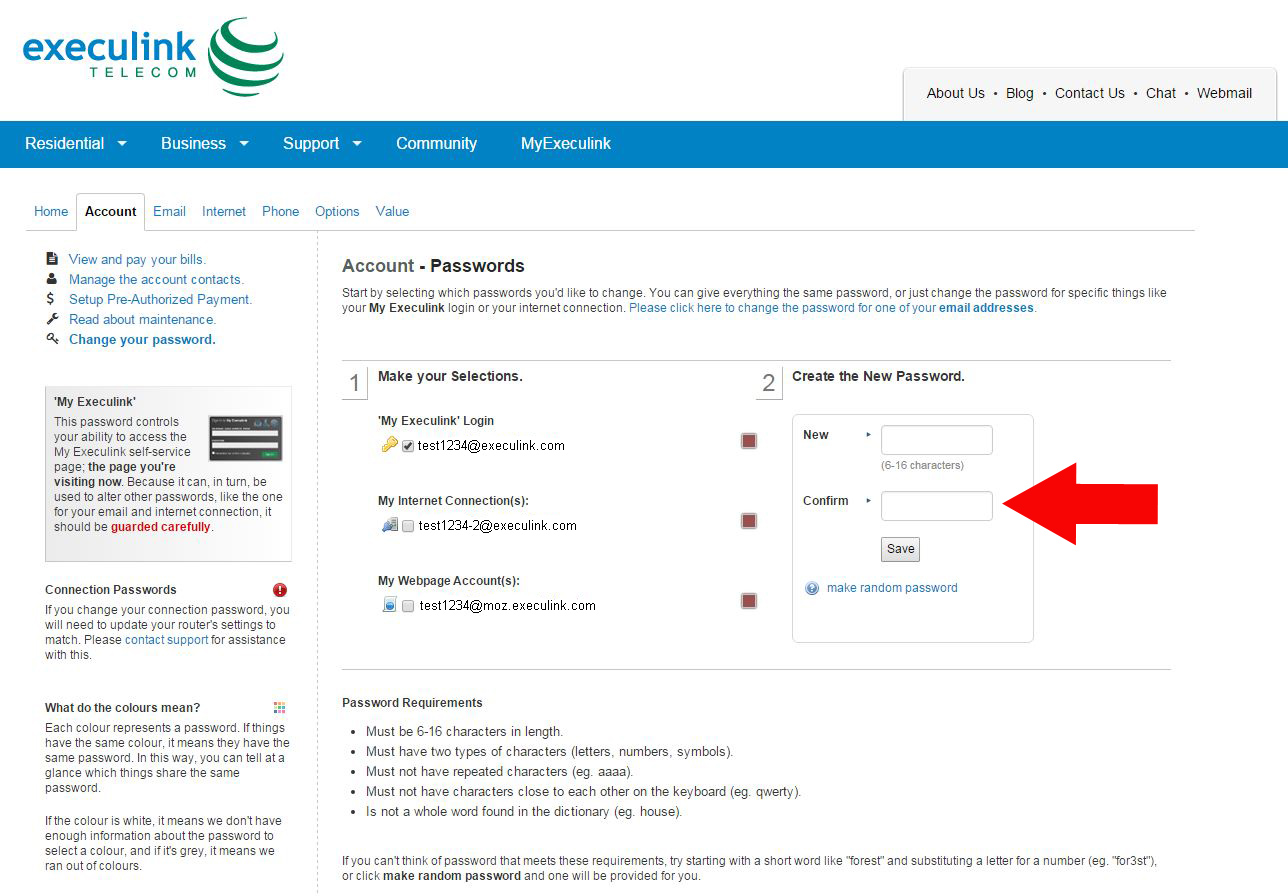
Step Six – Confirm your new password in the box below
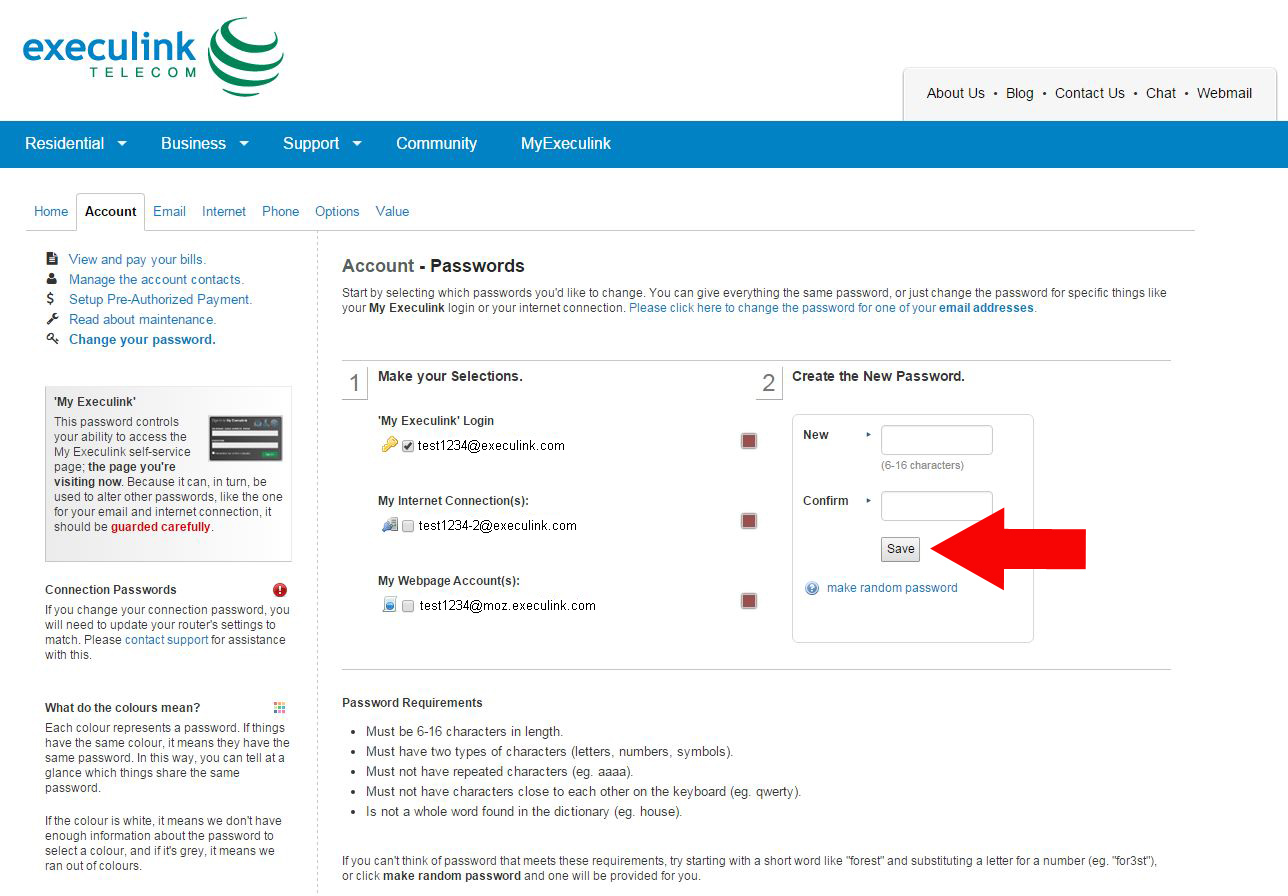
Step Seven – Click ‘Save’
Updating your password is extremely important in protecting your on-line information. Several guidelines for creating a password can be found on this page as well.
To watch the video on how to Change your MyExeculink Password see below.
As our technology continues to advance and an emphasis is placed on building talent in the STEM fields (that stands for science, technology, engineering, and math), it’s no surprise that many companies are looking to get the next generation educated and interested as early as possible. This is likely the reason for the recent boom in toy manufacturers coming out with STEM-related toys, kits, and games for children as young as five years old – the earlier the better, right? Stay tuned to learn about some awesome toys that could get your child interested in programming, robotics, engineering, and more!
We’re going to start off strong with the LEGO WeDo 2.0 kit. It’s designed for classrooms in elementary schools, for students between grade 2 and grade 4. The idea is to distribute high-tech LEGO kits to students, the students would then build one of many possible LEGO “robots”, and then they could modify, program, and move their new LEGO creation with the help of an app for tablets or computers. This program is designed to help children become interested in robotics, engineering, programming, and science in general. Supplying enough kits for an entire classroom as well as purchasing the license for the curriculum comes to a total of $2000, which doesn’t seem unreasonable if it ignites a real passion for technology in a huge group of kids.
Areas of interest: programming, robotics, engineering, science, technology
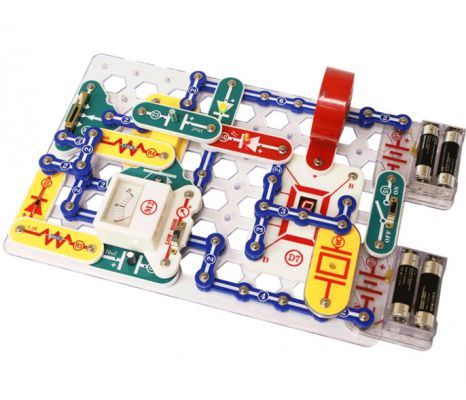
This product is cool because even though it’s just a plastic board and a few different types of board pieces, if assembled correctly, it can turn into an alarm clock, an AM radio, a doorbell, and much more. It’s designed to teach kids about electronics in a fun way, and only requires AA batteries to run. It has also won a bunch of awards, so it clearly works to keep kids interested and educate them about electronic circuits! There is a variety of Snap Circuits kits to choose from – from starter kits to huge, 750-experiment kits, and even “Snap Circuits Green” kits, where the focus is on teaching children about environmentally-friendly energy. Kits range from $25 to $150.
Areas of interest: science, electronics, engineering, environment
This is a really interesting idea for a board game. It teaches children the basics of computer programming without the use of a computer. I thought it sounded next to impossible, but when I watched the demonstration video on their website (linked in this section’s title), it all started to come together. You have a little avatar on a board, and your objective is to make it through levels while collecting power crystals – but the catch is that there is only one specific route you can take that will allow you to collect all of the crystals and beat the level, mirroring the way computer programs work. This would be a great introductory game for any aspiring coder! And for only $19.99, the price can’t be beat.
With a name like MudWatt, you’re probably wondering what the heck this product actually is. The name is simply a combination of the words “mud” and “watts” – as in watts of power! The product is designed to teach kids about electron-producing microbes that live in our soil by showing them first-hand exactly how powerful these little guys can be. The only thing the kits don’t come with is the soil, which you’ll need to harvest on your own. About a week after you start your experiment, you’ll have enough juice to power a clock! Kids can even experiment by adding different types of soils, or even natural products from the fridge, to see if certain things produce more energy. Although MudWatt seems simple enough, I think it could result in hours of mad scientist fun. The basic kits start at $30, while the larger kits run up to $90.
This little robot is super cool, and totally programmable and customizable. It’s just over an inch tall, and is the epitome of gamified coding. You can program Ozobot’s movements using OzoBlocky Programming Editor on your computer, as well as play a ton of games online that connect to your physical robot. At the more basic level, you can even make Ozobot move using regular paper and markers – he’s so smart that he can follow the lines you draw, even ones with intersections and more complex lines! Again, this is a great starter tool for young programmers or kids interested in the mechanics behind robotics. The newest version of the Ozobot is only $60 from their website.
Areas of interest: technology, programming, robotics
So, this is basically the coolest thing ever. If I were 10 years old, this would be on my birthday list for sure. Actually, on second thought – I might put it on my birthday list anyways. It’s a 3D printing pen! In case you’re unfamiliar with the process of 3D printing, check out our past blog here. Basically, it allows you to “draw” physical objects layer by layer, in the air. If that doesn’t sound like magic, I don’t know what does. You can use it freehand, or use stencils to create amazing shapes, models, or toys – the list goes on and on. You need to watch the video to get a real sense for what I’m talking about.
Do you still think I was exaggerating when I said this was the coolest thing ever? The 3Doodler comes in at $99.
So if you have an aspiring engineer, programmer, or scientist on your hands, or any other child who just enjoys being creative and figuring out how thinks work, these innovative STEM toys and games may be for them. Just remember to give me credit when your little one becomes the next Bill Gates.
Click here to see Execulink’s Home Internet options
This is the time of year when everyone attempts to escape the cold Canadian winter weather (well maybe not this year) and take a well-deserved vacation. But just because you are enjoying warm beaches, exotic foods and all-inclusive resorts, doesn’t mean the world has stopped spinning. You email inbox will continue to fill up, with impatient friends, family and coworkers wondering why you haven’t responded yet.
We thought right now would be an excellent time to do one of our How To: posts on setting up Automatic Replies so you can let everyone know that you are unable to check your emails, and give them expectations on when they will hear back from you.
The instructions below detail how to set up Automatic Replies on Microsoft Outlook (2010). At the bottom of this post we also include links to set up these messages on other Email Clients (including Windows Mail)
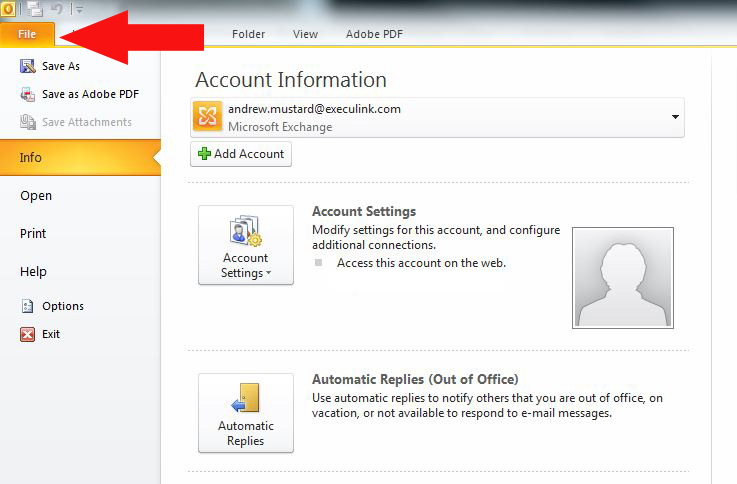
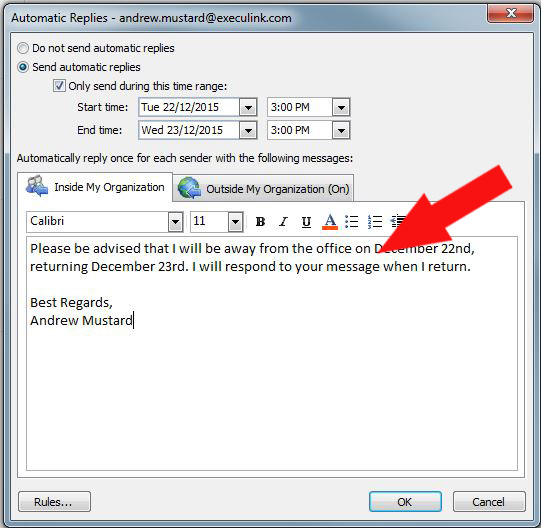
Step One : Click File in the top right corner of Outlook, you should automatically be in the Info section
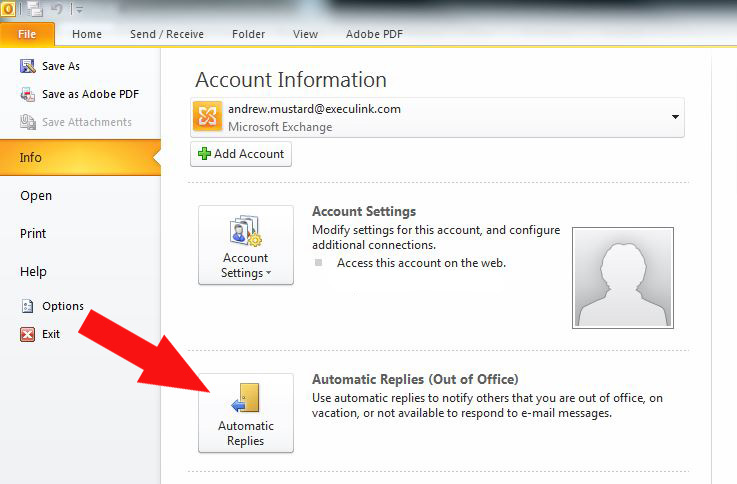
Step Two: Click Automatic Replies (Out of Office)
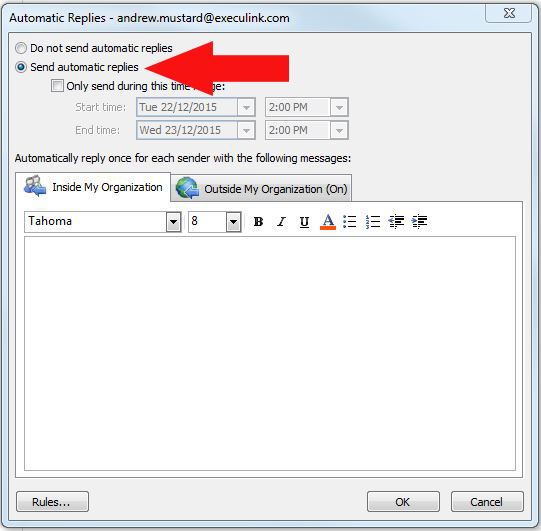
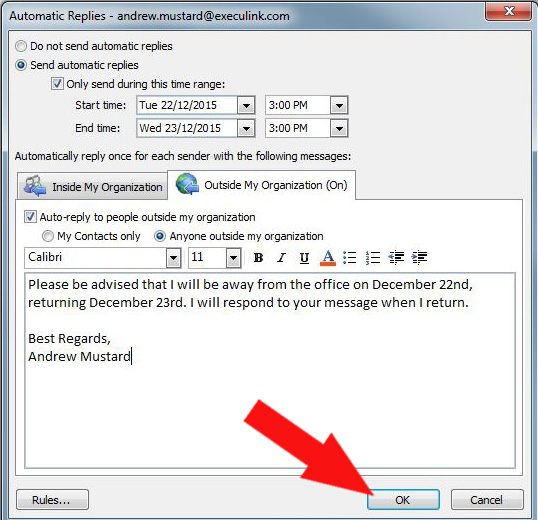
Step Three: Click the circle beside Send Automatic Replies to turn this function on.
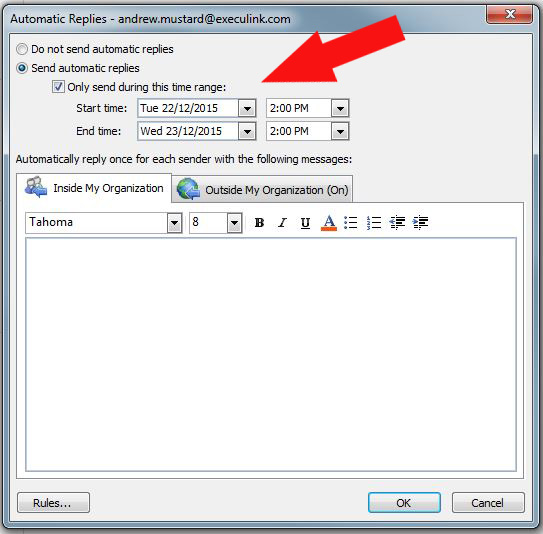
Step Four: If you know the specific period of time you will be away from your email for, click the check box beside Only send during this time range: and enter your Start and End times.
Note: If you choose not to indicate a time range, make sure to un-check Send Automatic Replies when you return from vacation.
Step Five: Enter a message in the Inside My Organization field. This message will only be sent in response to internal (within your own company/organization) emails.
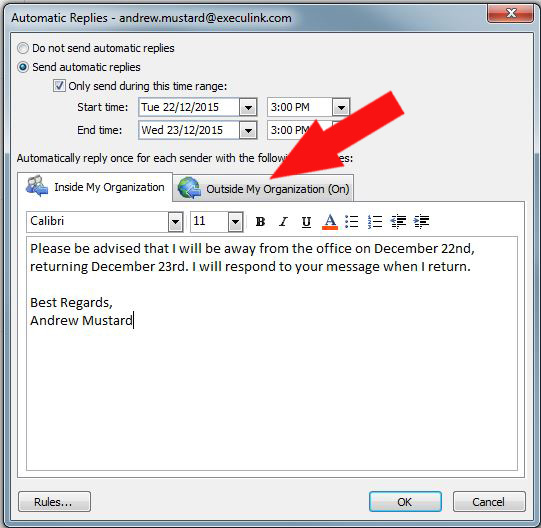
Step Six: Click Outside My Organization
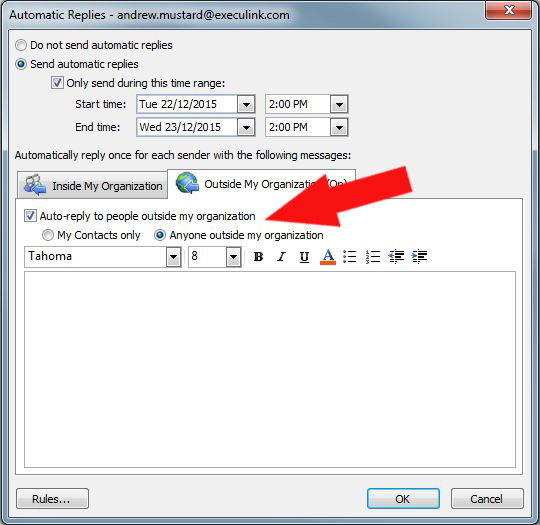
Step Seven: Make sure Auto-reply to people outside my organization and Anyone outside my organization are both selected.
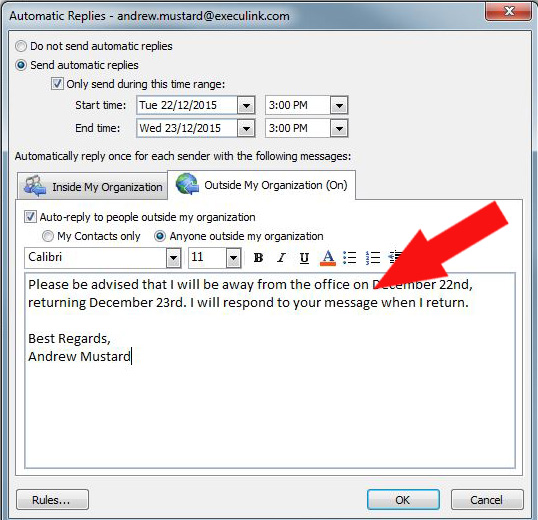
Step Eight: Enter a message in the Outside My Organization field. This message will only be sent in response to external (outside your own company/organization) emails.
Step Nine: Click OK
As mentioned before, if you have specific Start and End times selected, these messages will stop appearing after the end time. If you choose not to indicate a time range, make sure to uncheck Send Automatic Replies when you return from vacation.
If you are not using Outlook as your email client, here are some other resources to help you get your Automatic Replies. Click on your email client for instructions.
Now that you have your Automatic Replies set up, it’s now time to enjoy your vacation! Where you are heading down south to enjoy the warm sun, or sticking around home for a staycation – we hope you enjoy yourself!
Click here to see Execulink’s Business Internet options
In an earlier blog post entitled How To: Monitor Internet Usage & Avoid Overage Charges, we stressed how important a strong Wi-Fi password is for security and protecting your monthly usage. Today we are going to show you how to change this password.
If you rent a wireless router (or a modem with wireless capabilities) from Execulink, you are able to change many settings from your MyExeculink portal – including changing your Wi-Fi password. Below is a step by step process of how to change your Wi-Fi password on an Execulink modem/router.
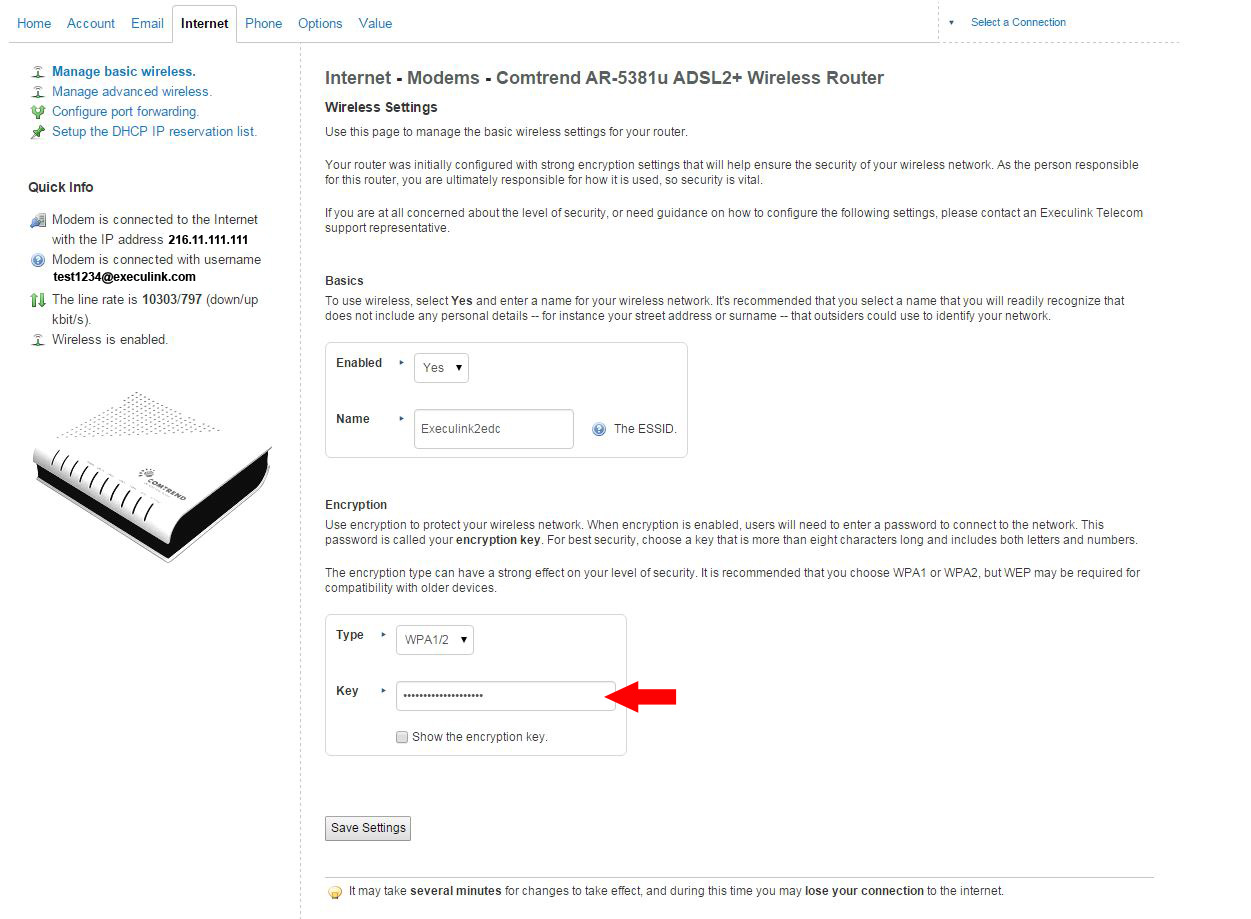
Step 4: On this page you will see options to change your Wi-Fi password
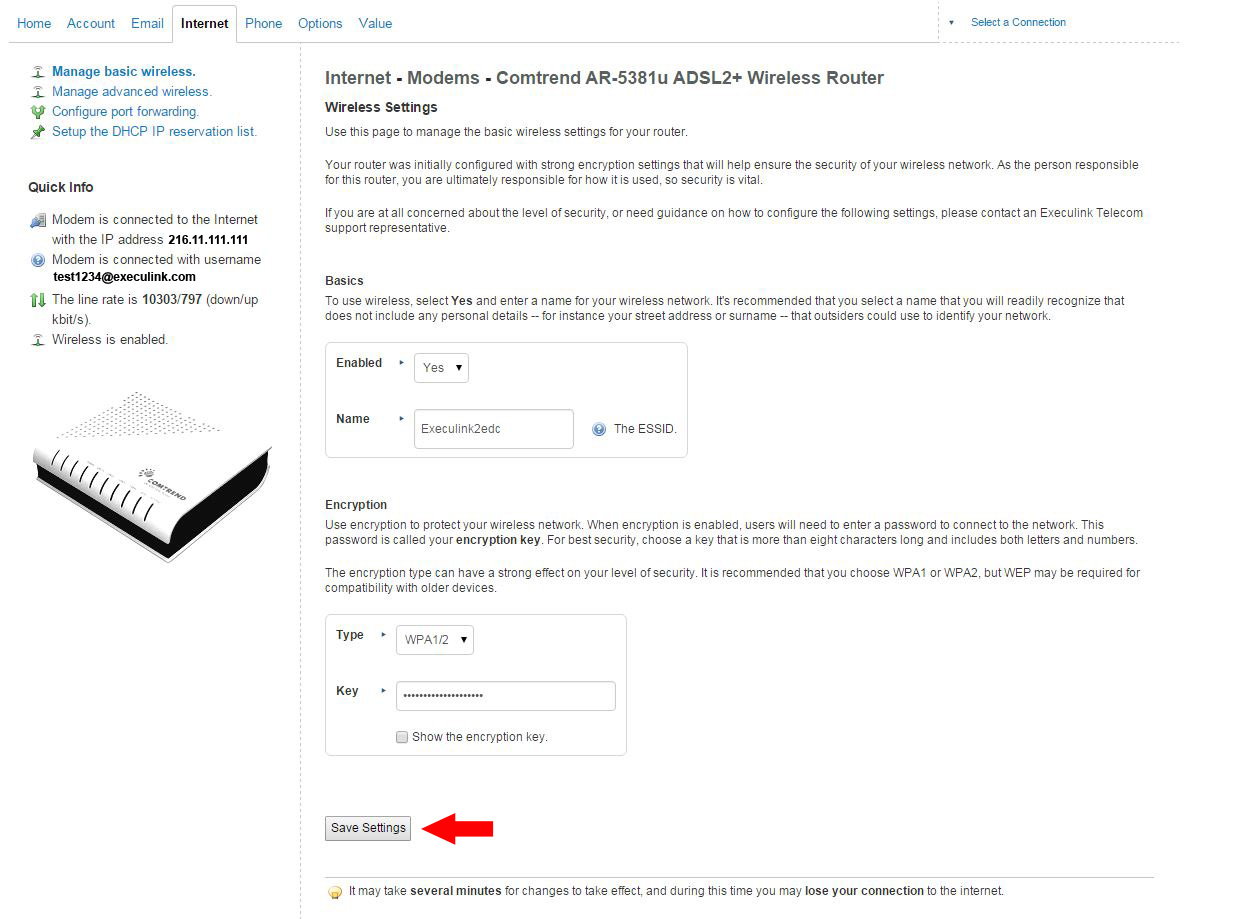
Step 5: Enter a new password and click Save Settings
Now that you know how to change your Wi-Fi password, make sure it is not too obvious and includes enough special characters to make it impossible to figure out. For more tips and tricks on passwords, click here.
To watch the video on how to Change your Password on an Execulink Router see below.
Lego, the plastic building block toy, has been a staple in childhood entertainment since 1949. Anyone who knows the joys of creating and building a Lego masterpiece also knows the downsides. While searching for that specific piece you need, you make a lot of noise, the pieces get scattered all over the place, and if you attempt to walk through a room where Lego is being played with, there is a high chance you will experience extreme pain from stepping on a piece (although a solution for that last issue has recently been discovered).
There is now a way of using your creative and building skills without creating a mess. Lego, in association with Google, has created a virtual Lego playground called ‘Build with Chrome’. This website allows you to digitally access the same Lego pieces you know and love and to develop your own creations online. You can start with online lessons or dive right into creating Lego versions of your favourite buildings and landscapes in Google Maps. Once your masterpiece has been built, they are published as part of an online community.
After browsing this virtual Lego world, I was fascinated by the imagination, time and talent required to create Lego clones of real life locations.
Here are some of my favourite buildings/landscapes I have found in the ‘Build with Chrome’ Universe.
As a former (self-appointed) Lego expert, I figured the digital version of one of my favourite childhood pastimes would come naturally to me. I attempted to make a Lego version of Execulink’s head office in Woodstock. After 20 frustrating minutes – I gave up. It’s a lot harder than I remember. Placing and maneuvering the pieces takes some practice – I highly recommend starting with the provided training called Build Academy.
Luckily for me, my co-worker and fellow blogger, Candice, had the patience, imagination, and ingenuity to create an amazing replica of our company headquarters. Check it out online by visiting https://www.buildwithchrome.com/build/UedueiAQA.
Not only is this an extremely fun and challenging activity, it might be an interesting way to teach children world geography in a new and engaging way. I do have to warn you, as with many things on the Internet, there are some people who publish irrelevant designs that may be tasteless. I haven’t found anything too inappropriate, but it’s a big world out there.
I also must warn you that this is an extremely addictive program and could eat away at your weekend. If you have built any of your own (appropriate) creations, we would love to see them. Feel free to post a link or screen cap on our Facebook page.
As hard as we try to keep our services up and running 100% of the time, sometimes problems do occur that are out of our control—an icy snowstorm disrupts a tower; a construction crew cuts a cable by accident; an alien invasion threatens the planet (well, maybe not that last one). The hard fact is that life happens and our services sometimes pay the price. Luckily our skilled technicians are always ready to get you back up and running.
When these things happen, we like to keep you up to date with real-time notifications on our progress. These are the steps you need to take in order to receive those notifications in your Execulink email inbox.
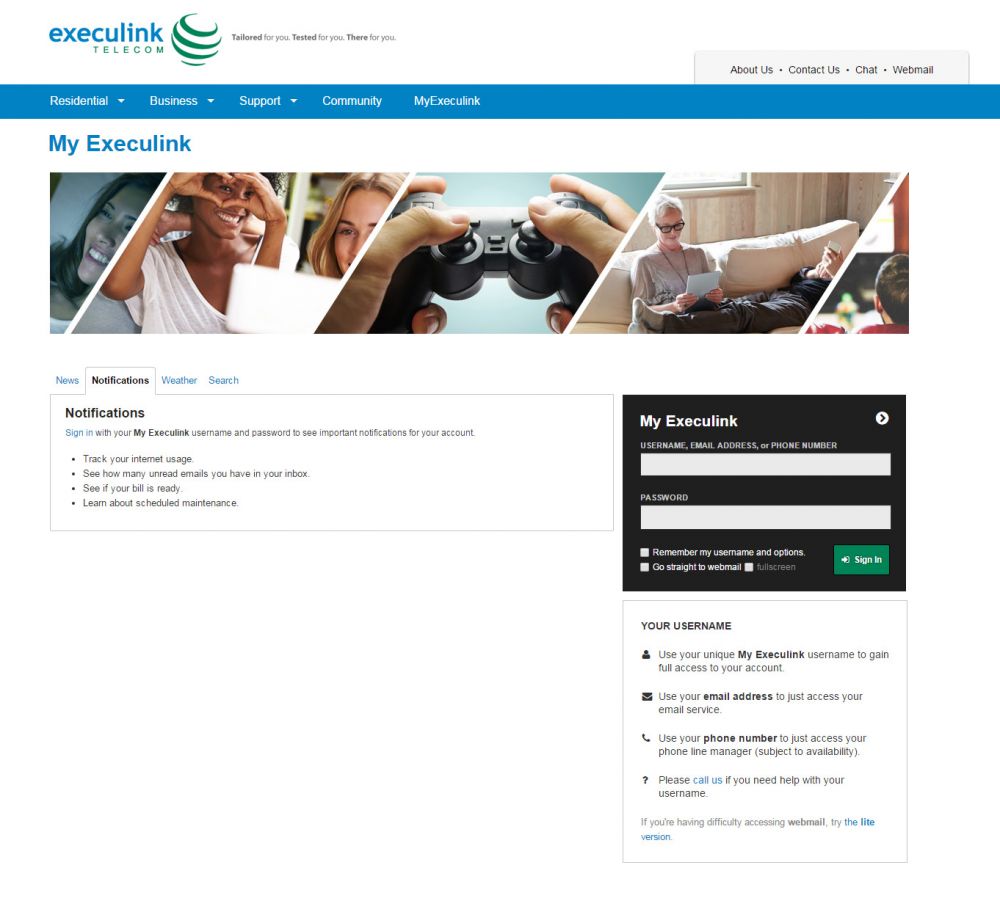
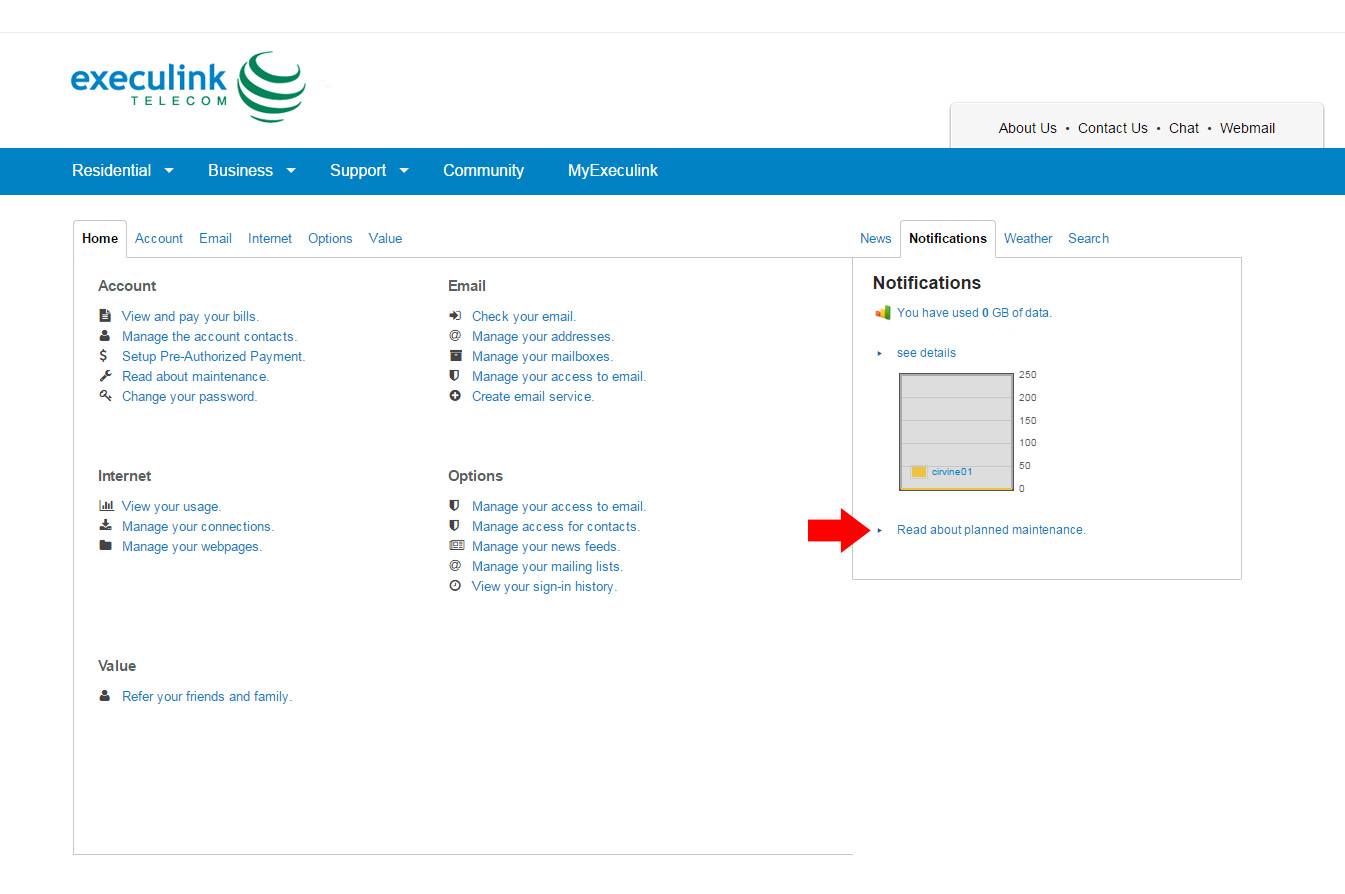
Step 2: Under the Notifications tab, click on the “Read about planned maintenance” link at the bottom.
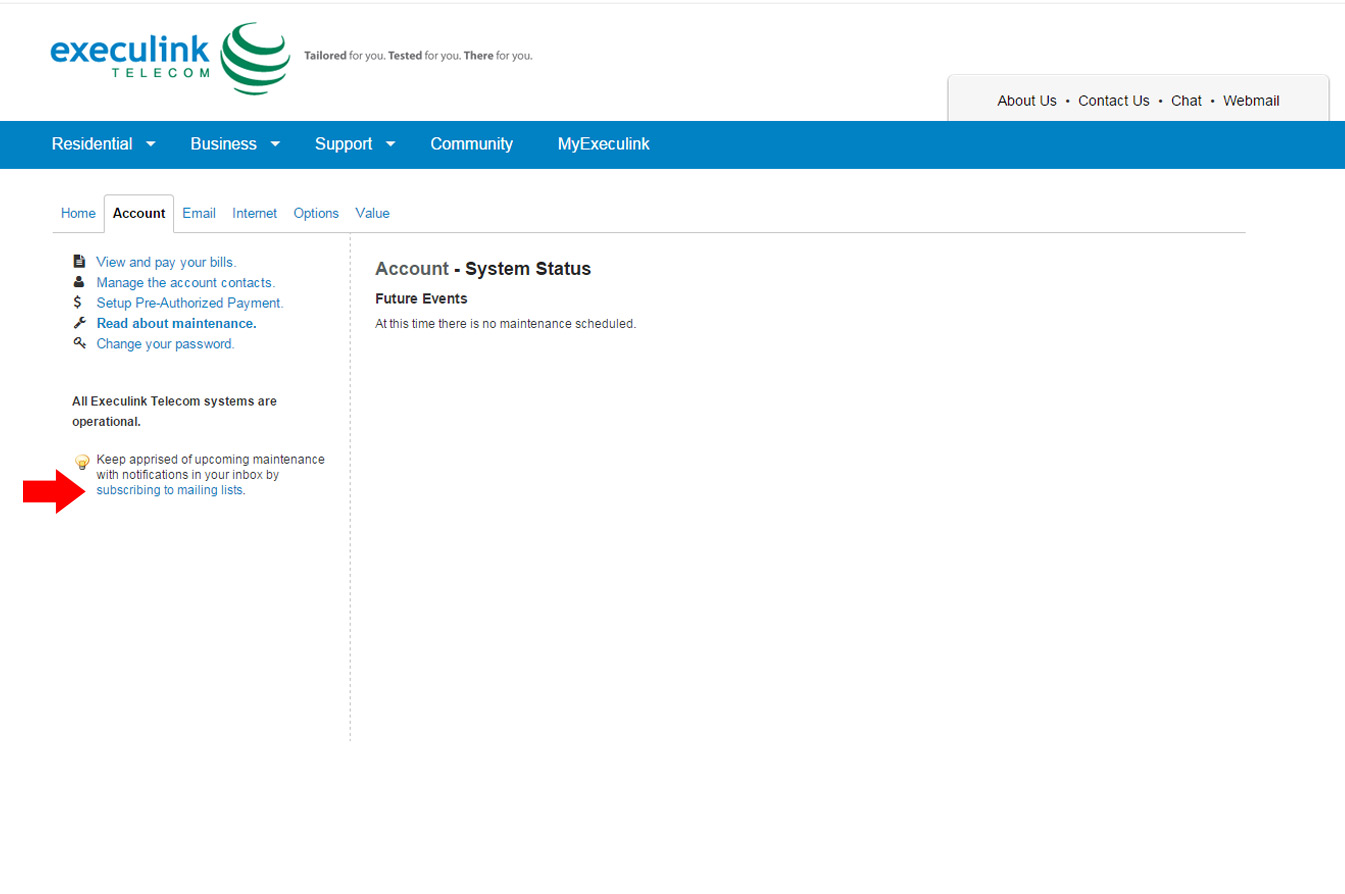
Step 3: Under the Account tab, click on the “subscribing to mailing lists” link at the bottom.
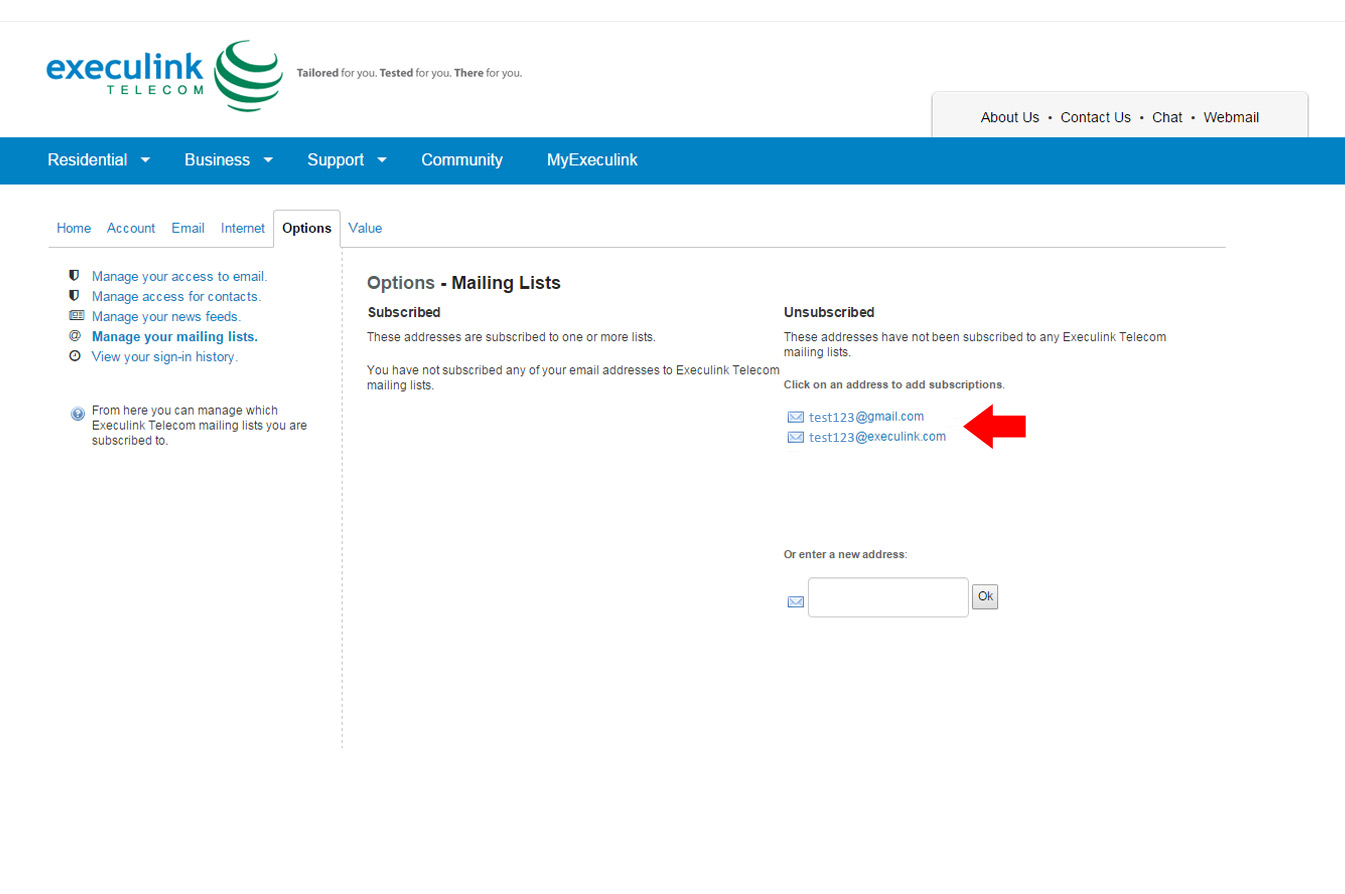
Step 4: Here you’ll find a list of your email addresses, showing which ones have subscriptions to notifications and which ones don’t. Click on the email address(es) you would like to receive notifications to.
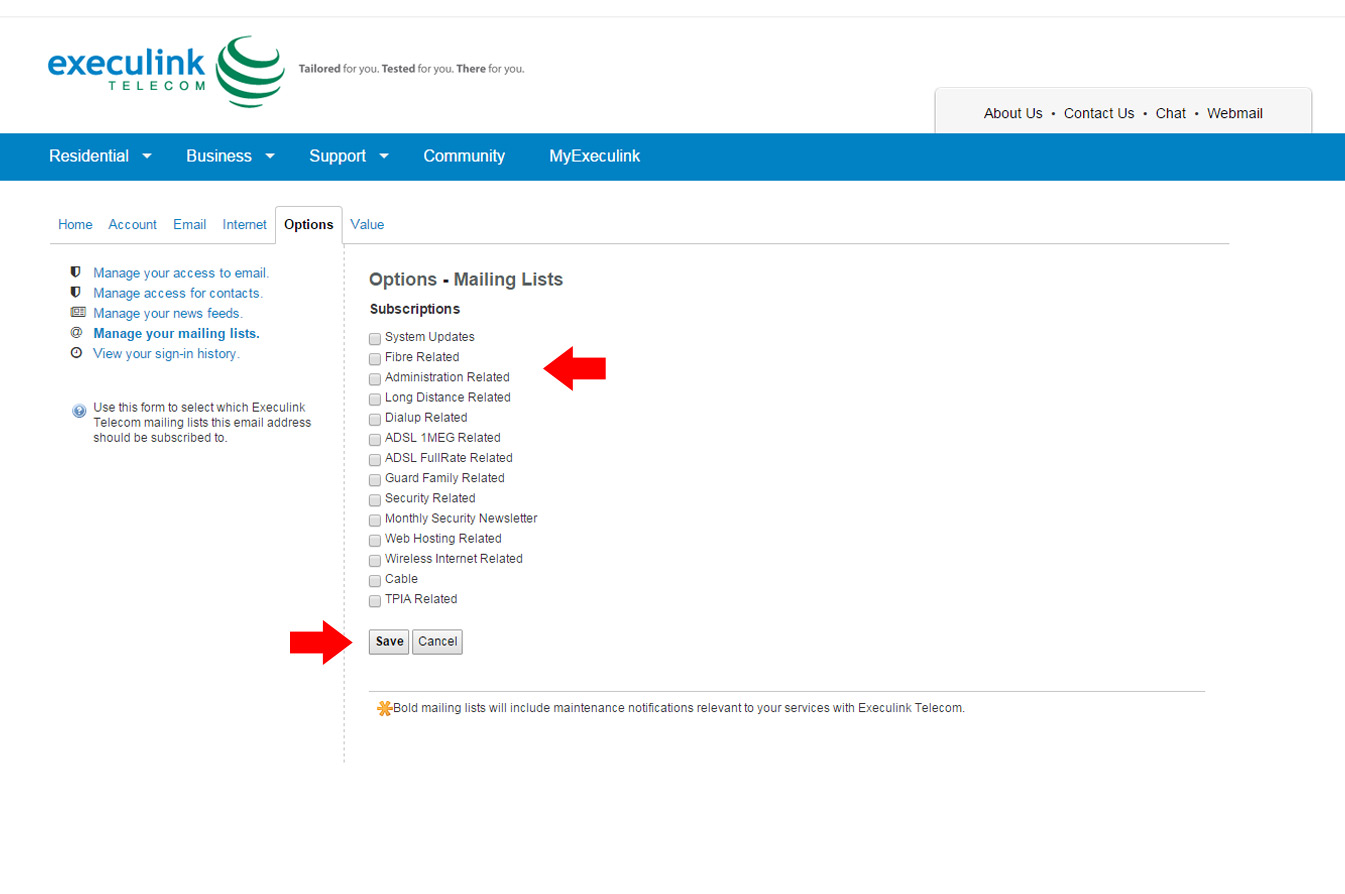
Step 5: This next page shows all the available types of notifications you can subscribe to. You can get more generalized System Updates, or narrow it down to a particular service. Make sure to click the Save button once you have made your choice(s).
Once this step is done you are now signed up to receive notifications from us!
To unsubscribe, repeat these same steps again, and simply unclick the appropriate box of the service you are subscribed to and click Save.
Although disruption to service is sometimes inevitable, we pride ourselves in being transparent about it and keeping you informed. We appreciate your understanding and hope this tool alleviates some of your worry.
To watch the video on how to receive Service Status Notifications see below.
Have you ever gone over your monthly Internet usage limit? It’s never fun paying any additional fees on monthly services. This is why we put together this friendly guide to avoiding overage charges to ensure you are getting the most out of your Internet package.
We’ll start by showing you how to monitor your monthly usage online (for your Execulink Internet service) and then we get into some tips on how to limit your usage and avoid any additional charges on your Internet bill.
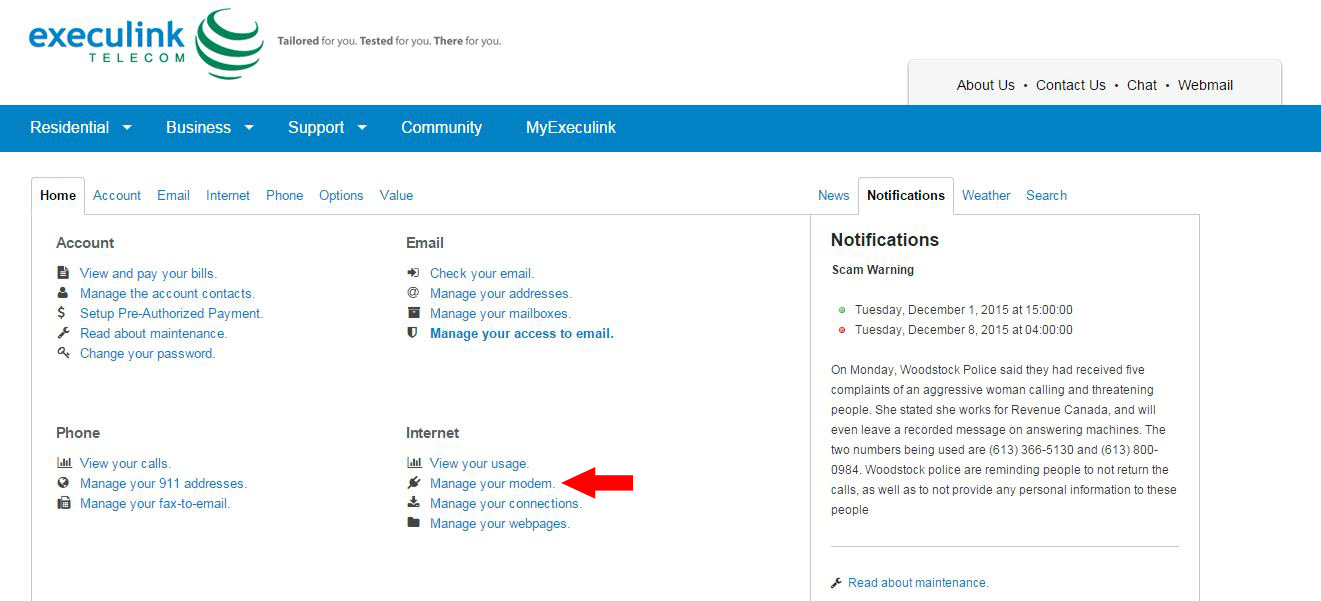
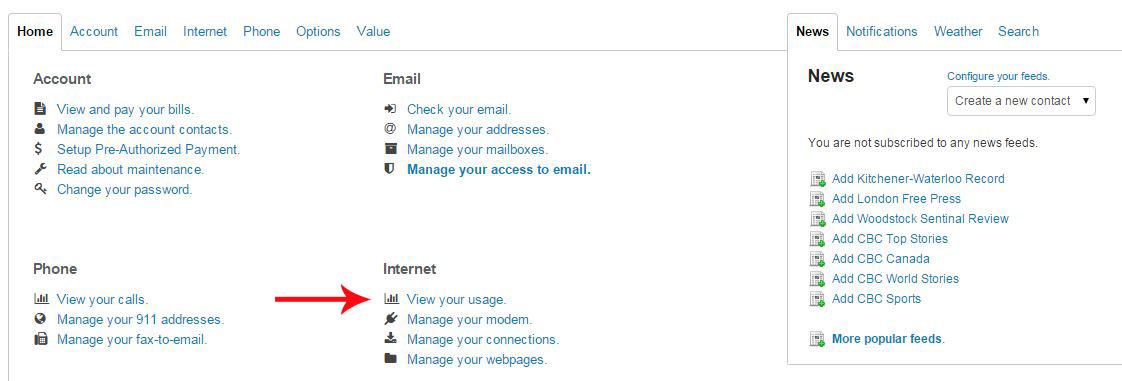
Under the Home Tab, click on the View your usage link under Internet
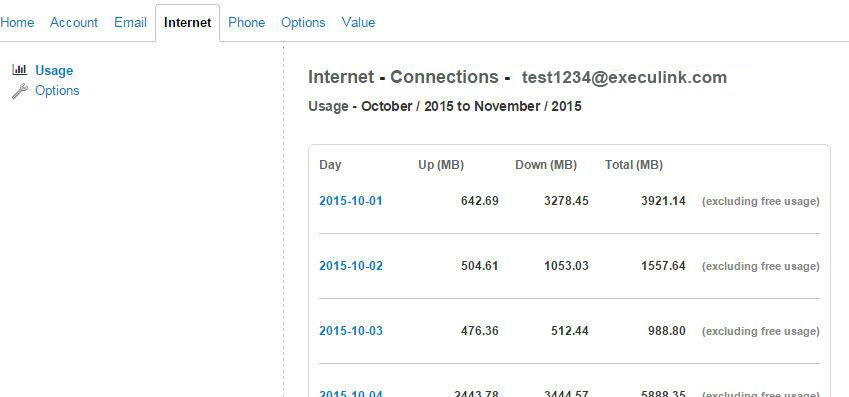
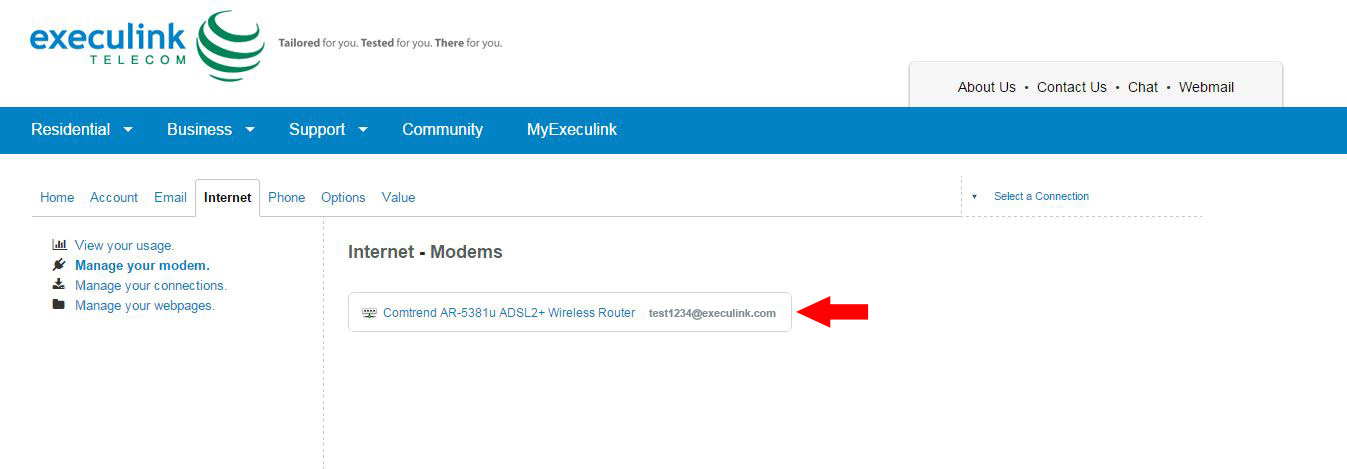
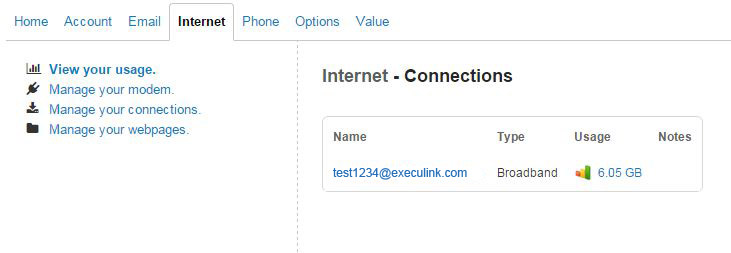
You will now be brought to the Internet – Connections pageOn this page, you will see your connections listed (appearing as user name), and a quick glance at your current usage for the month.
If you would like further information on your usage, click either your connection (test1234@execulink.com in the example above), or the usage amount.
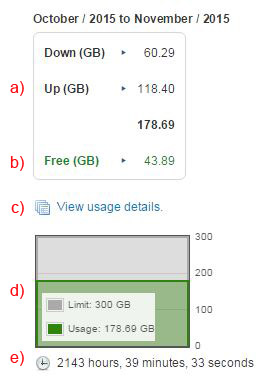
You will now be brought to a page, detailing both your current month’s usage,and usage information from the previous 2 months.
a) Each month’s data will show your Download and Upload totals as well as your total usage (that you will be billed for).
b) Below this, you will also see how much was downloaded/uploaded during the Free Usage period between 2am-9am. You are not charged for this usage.
c) The View usage details link allows you to view your data per day.
(see step 6 to see what that looks like)
d) At the bottom of the page, you will see a chart comparing your billed usage against the total amount of usage you have for the month.
e) Below this, is the amount of time you have spent online.
If you click the View usage details link on a particular month, you will be brought to a page that details your usage on a daily basis.
To watch the video on how to Monitor Internet Usage see below.
Five Tips to Avoid Usage Overage Charges
Disable Auto Play on Facebook videos In a recent update, Facebook made all videos Auto Play when you view your timeline. This eats up your monthly usage limit without your consent, but you are able to disable this feature. For instructions on disabling Auto Play on Facebook videos, click HERE.
Turn off YouTube’s Auto-Play Feature After viewing a Youtube video, another video is automatically played immediately after. Although this feature can be useful to continuously play videos, it can be disabled to avoid using up to much of your monthly usage. For instruction on disabling Auto Play on Youtube videos, click HERE.
Ensure your Router has a legitimate password Controlling your own personal Internet usage is hard enough, you do not want others hopping on your wi-fi and using up your bandwidth. Make sure you have a wi-fi password, and make sure that password isn’t obvious. For tips on choosing the best passwords, click HERE.
Schedule downloads for Execulink’s Free Usage Period (2am-9am) Most of Execulink’s capped plans include a Free Usage Period between 2am and 9am, where all downloads and uploads are not counted against your monthly usage allotment. In addition to manually waiting and downloading late at night, there are several extensions you can use in your browser to schedule downloads such as Firefox’s Download Scheduler.
Switch to an Unlimited Plan If you are a heavy internet user (in terms of usage, not weight) and even the 4 tips above does not help you stay under your monthly usage limit, it may be time to switch to an unlimited package to eliminate any worry of going over. To check out Execulink’s unlimited high speed Internet packages, visit http://ow.ly/RjbGr.
Finding a new home is both exciting and daunting. Of the millions of things there are to think about before moving, your Phone and Internet services are a couple of the top priorities to consider. With that in mind we here at Execulink have put together a checklist of ways to prepare your telecom services for the big move.
Before Moving:
Verify your new home is serviceable with working phone jacks and/or Cable access and if not, be sure to discuss inside wiring with your provider or with an electrician.
Contact us at least 2 weeks before moving and provide correct and full address details including unit/apt number and the postal code.
Verify service availability at the new address.
If moving out of city, make sure a new phone number has been provided by your previous phone supplier, if applicable. If we are providing the phone, we will give you your new phone number when you call.
During the Move:
Make sure all equipment is accounted for (modems, power cords, etc).
Ensure someone over the age of 18 can be at the new address for the install (if access is required).
Ensure you have provided us with an active cell phone number and an active email address for contact purposes. Having a backup cell and active email address for contact purposes is important to ensure that we can contact you if necessary.
After Moving:
Return any unneeded equipment (if applicable) to Execulink Telecom, 1127 Ridgeway Rd., Woodstock, ON, N4V 1E3.
Phishing may sound like an enjoyable way to spend a Sunday afternoon at the cottage, but that’s not quite the activity we’re taking about. Phishing – not fishing – refers to “the impersonation of reputable companies in order to induce individuals to reveal personal information, such as passwords and credit card numbers, online” (Oxford English Dictionary). Often, phishing is done through email messages, instant messages, or popups on webpages, and it can often appear to be completely legitimate and trustworthy. Here are some of the warning signs that you may be a victim of a phishing attempt.
1. Posing as Well-Known Companies
Scam artists often say that they are from a well-known, legitimate company in order to build your trust. They’ll even include the company’s graphics and a web address that looks very similar to the company’s URL in an attempt to lower your guard.
2. Spelling and Grammar Mistakes
This common indicator works in tandem with the first. Scammers often pose as legitimate companies, and legitimate companies almost always have a team of copy editors that would not allow a mass email or pop-up advertisement to be sent without being checked multiple times for spelling and grammar errors. If you receive a message that receives these types of errors, chances are, it’s not from the company it claims to be from.
3. Using Generic Greetings
Phishing emails, pop-ups and IMs are sent out in large quantities, and scammers don’t have the time and often, don’t have the data to personalize all of those messages. To get around these issues, they use generic greetings like “Dear Execulink Telecom Customer” on the top of every one. Be suspicious if you see a greeting like this in place of your name.
4. Requests personal information
This one is the dead giveaway. This is the overall objective of phishing scams, so if you receive an email or any other type of message asking for your personal info, close it and attempt to contact the company that sent the message to confirm that it was actually from them. If the company cannot confirm that they sent out the message in the first place, report it.
5. Links
This one is a no-brainer. If you see a link in a suspicious message or pop-up, don’t click on it. It will likely lead you to a website which will ask for your personal information.
6. Threats
Have you ever gotten an email saying something along the lines of “if you don’t provide us with your information in the next 24 hours, your account will be permanently deleted”? By making you think that something has gone wrong with your account, they try to scare you into fixing it by handing over your information to “make it all go away” as quickly as possible, when in reality, all you’re really doing is hurting yourself.
The moral of the story here is to be on the lookout and to use your common sense when dealing with emails, IMs and pop-ups from untrusted sources. Be wary when clicking links, and never, ever give out your personal information online!
Click here to see Execulink’s Home Internet options
The Internet Services You Deserve
Affordable. Reliable. Lightning fast.
We’re proud to provide the communities we know, love, and live in, with the reliable Internet, TV, Phone and Mobility services they deserve.
Your local choice for residential and business telecommunication services
Renowned 24/7 customer service you can depend on
Affordability, service, integrity and transparency are the pillars of our business






































 On this page, you will see your connections listed (appearing as user name), and a quick glance at your current usage for the month.